Foundation | AI Chat
available from Shopware 6.7
Use the AI chat to create, revise and optimise content in the administration. The chat knows the structure of the currently open item as well as its current values and media.
Configure an AI client
Create a new client under Extensions > Clients and select Chat-GPT as its type. Enter the API key, choose a model and reasoning effort, then verify the configuration with Test connection.
Next, select this client as the AI client under Extensions > Moorl Foundation > AI.
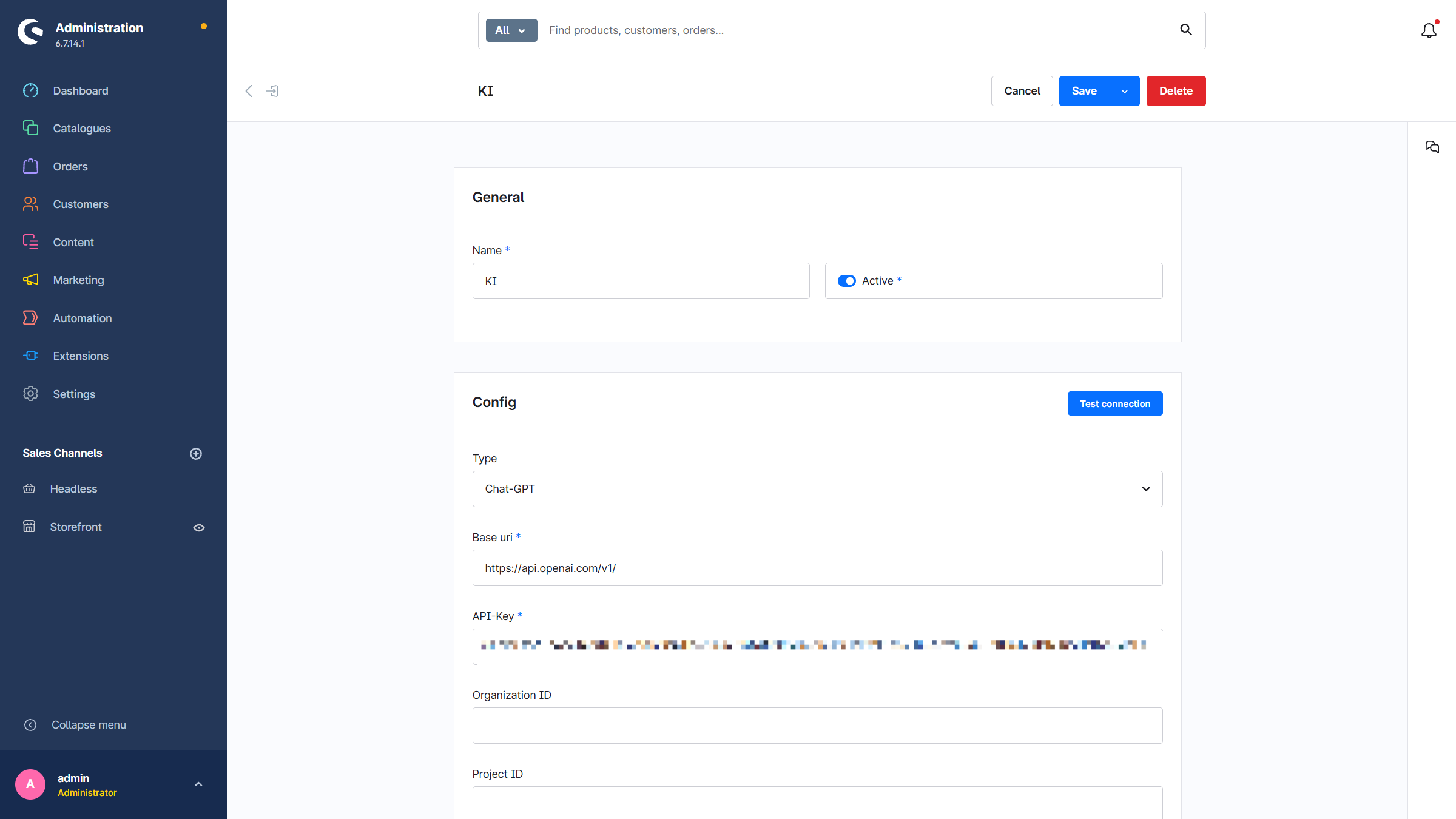
Store AI responses with OpenAI is disabled by default. Enable it only when OpenAI may store the responses.
Use the AI chat
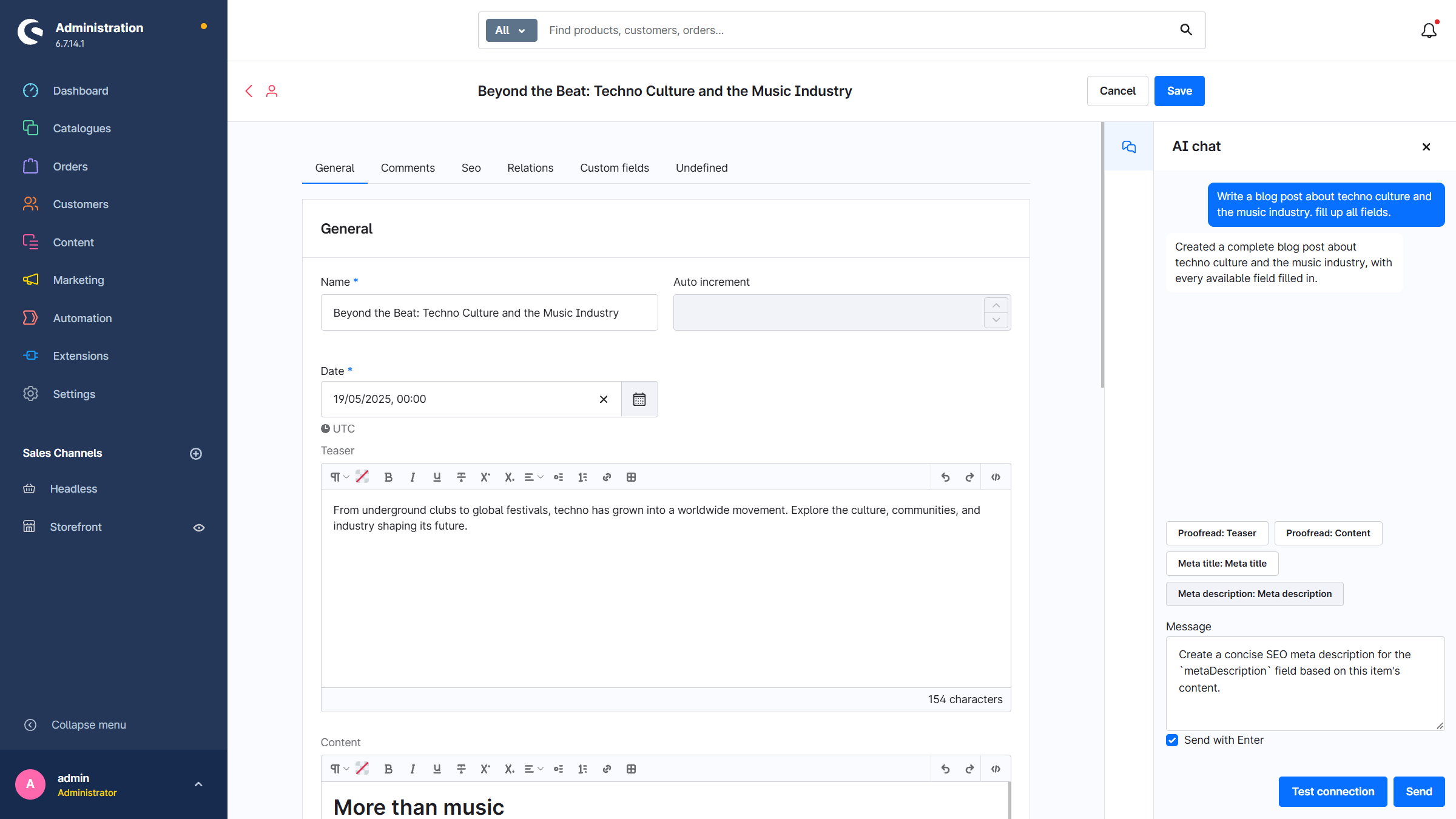
Open an item in the administration and click the AI chat icon on the right. In addition to free-form instructions, the chat offers suggestions for available fields, for example to proofread text or create meta data.
The first request sends the field structure, while every message includes the current item content. The chat can change text in direct fields and takes available media into account. Changes appear directly in the form, but still need to be confirmed with Save.
The chat is also available when creating new items. Enable Send with Enter to send messages with the Enter key.
Requirement
The Chat-GPT client uses the OpenAI API. It requires an API key with active API billing; a ChatGPT or Codex subscription alone is not sufficient.