Automatic cross-selling
This simple plugin tracks product page views and placed orders. Cross-selling lists and view histories are automatically generated based on the collected data.
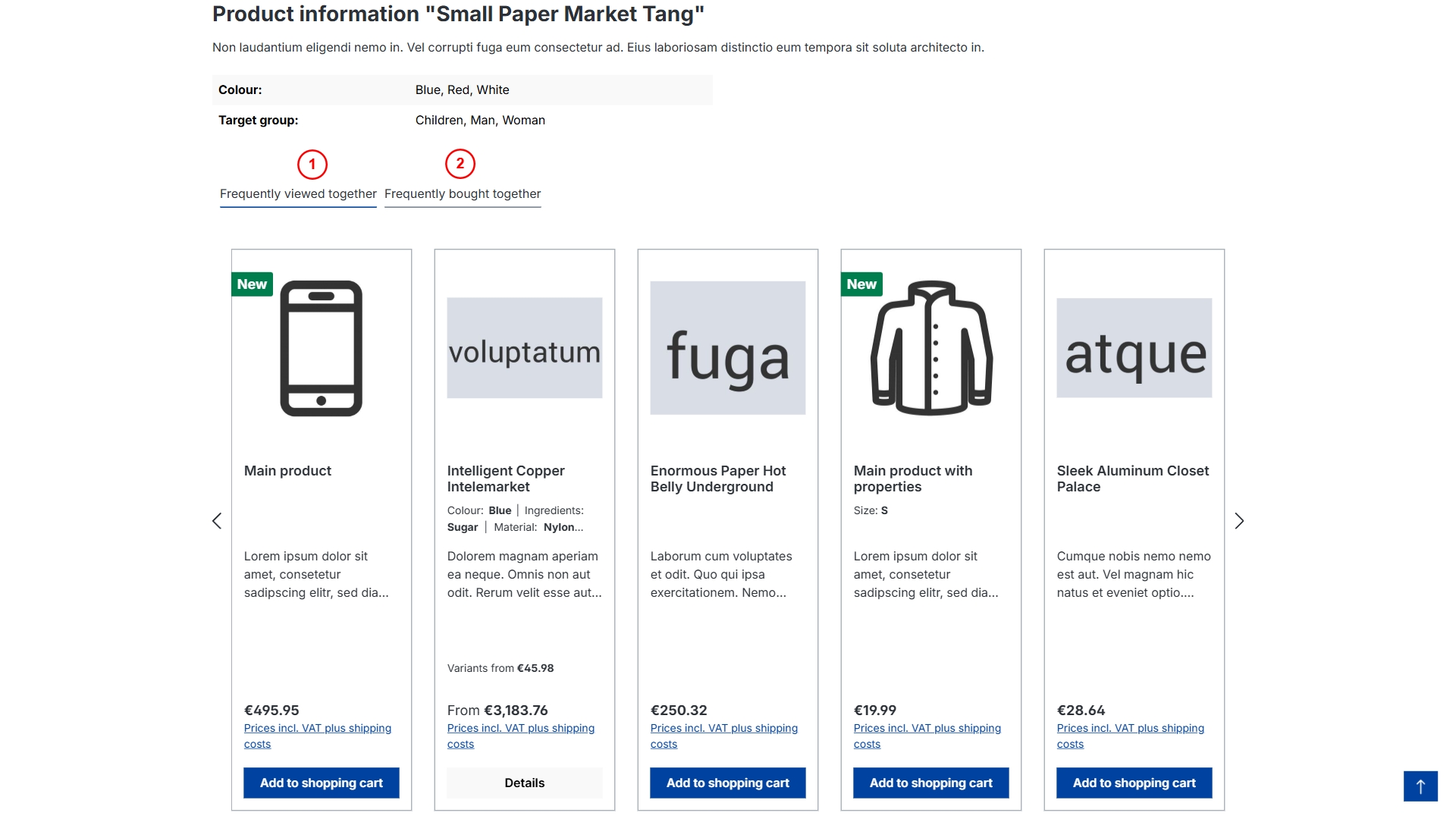
Purchase the Plugin
This plugin can be purchased in the Shopware Community Store.
Important note: You need the Foundation Plugin, which is available free of charge: moori Foundation
Initial setup
Plugin configuration
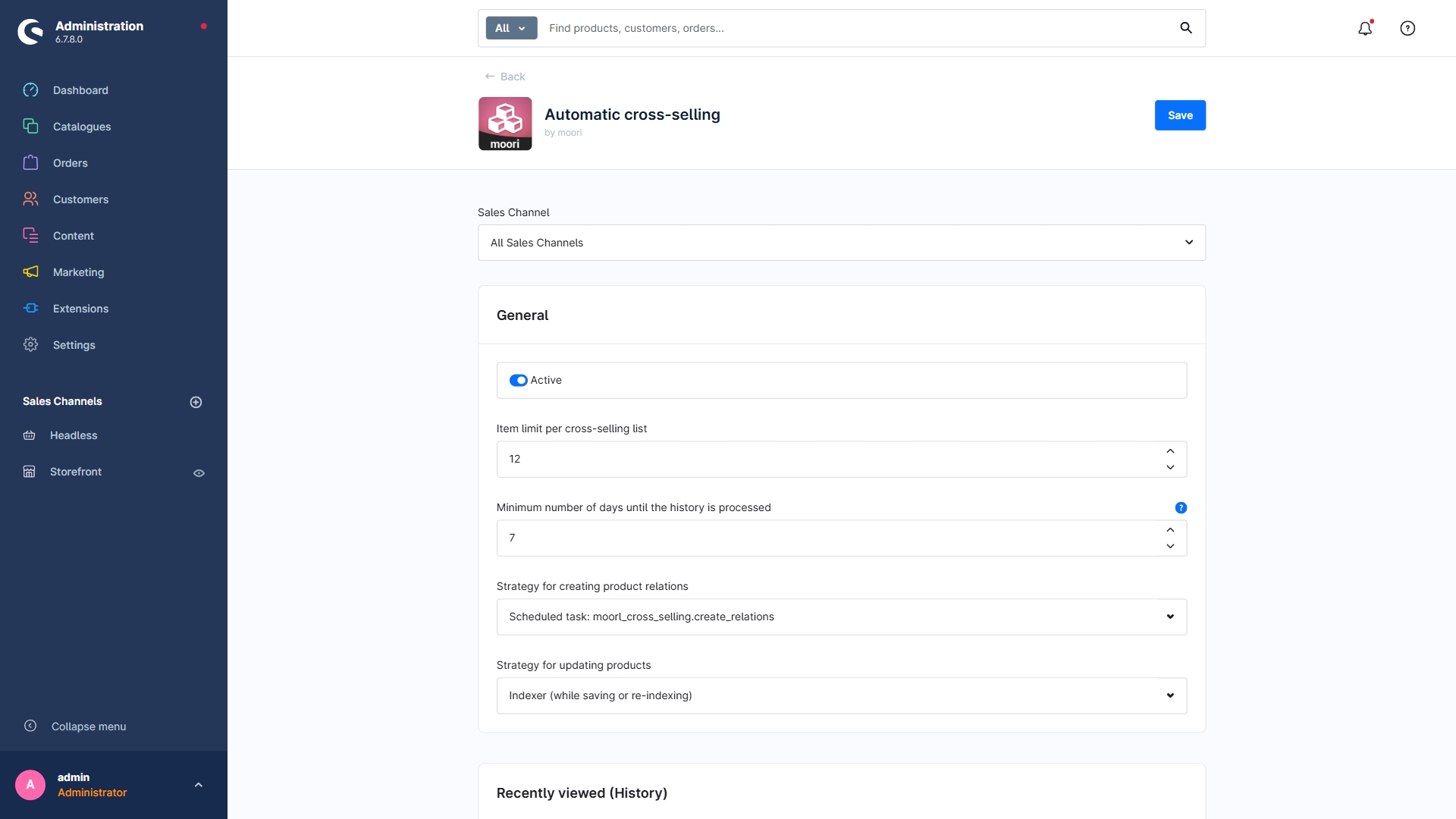
The plugin configuration contains all required settings to start generating cross-selling lists.
Configuration
- Active: The plugin is active for the current sales channel.
- Item limit per cross-selling list: The generated lists are limited to this value.
- Minimum number of days before history is processed: If the customer remains inactive during this period, the history is processed and deleted.
- Strategy for building product relationships: Automatically via scheduled task or by using the console command
bin/console moorl:cross-selling:create-relations - Strategy for updating products: Automatically via indexing or by using the console command
bin/console moorl:cross-selling:update-products
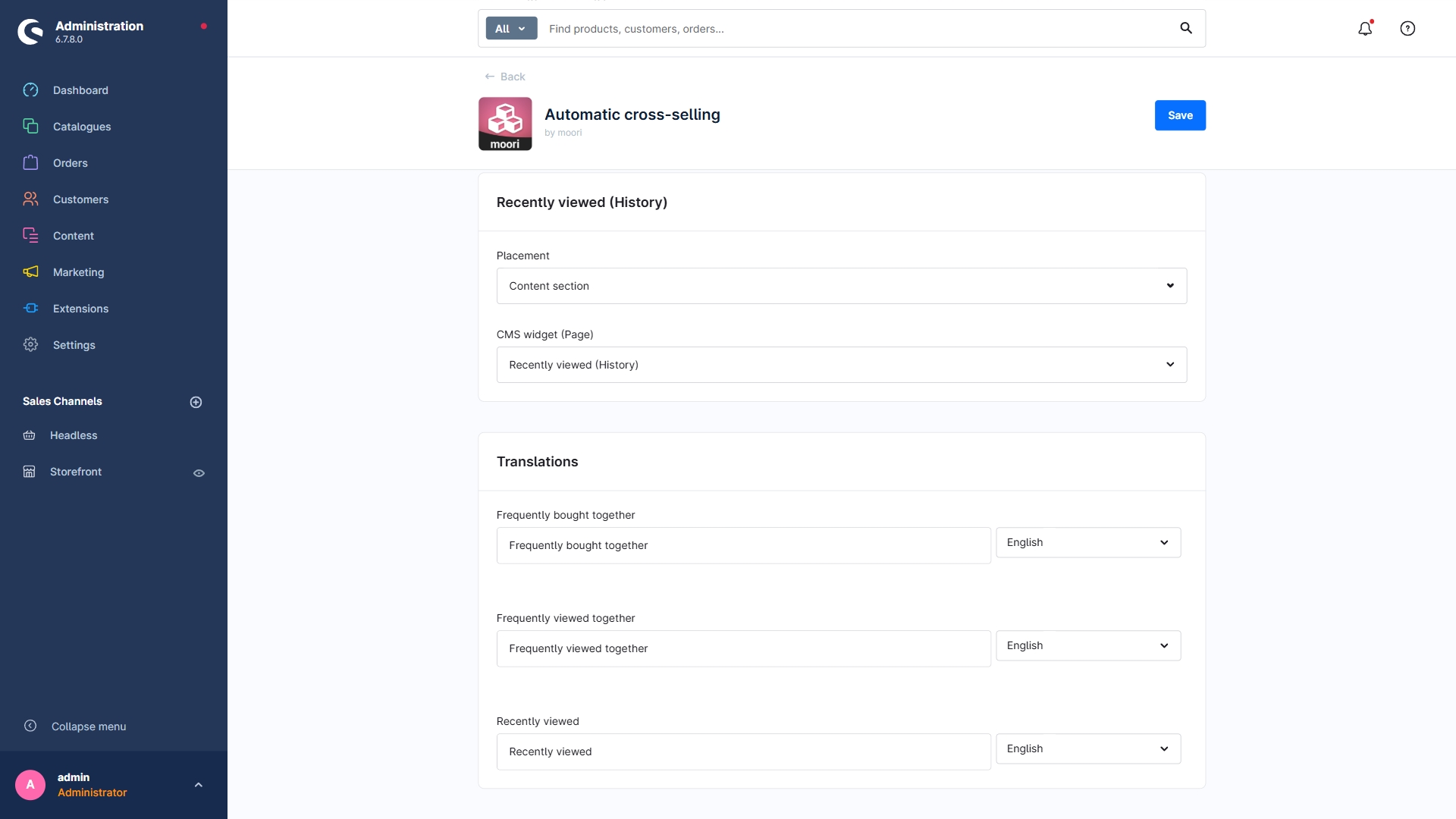
Recently viewed (history)
- Placement: Select a placement or Disabled.
- CMS widget (page): The CMS widget with the slider is loaded via AJAX. The settings can be adjusted on the corresponding CMS page.
Translations
This is where the titles of the cross-selling lists are configured for all languages. If no configuration is available, the system language is used as a fallback.
Console commands
Collecting and evaluating the data via scheduled tasks and indexing can take a considerable amount of time. To create usable lists immediately, you can use the console commands.
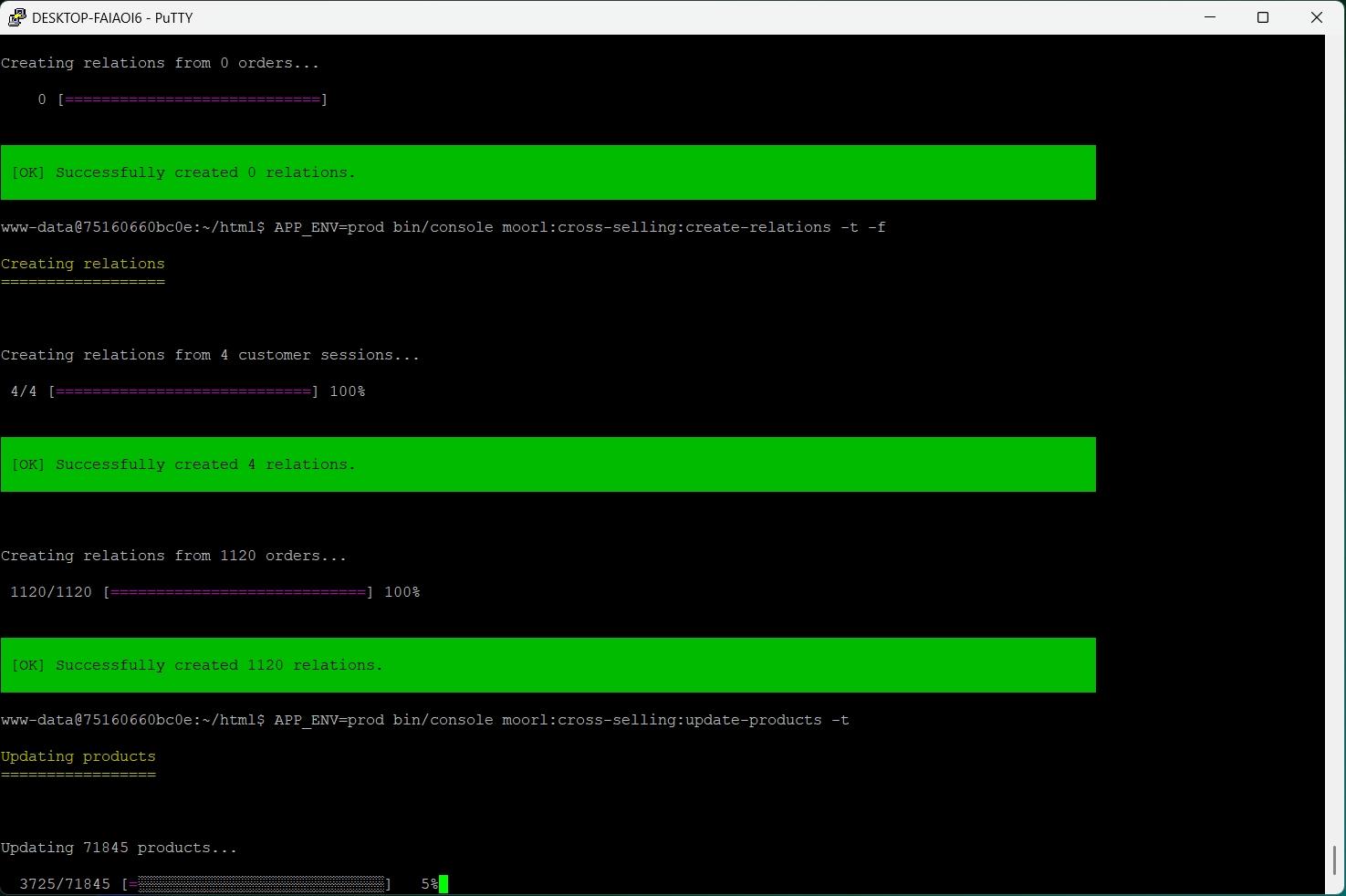
Step 1: Detect and create relationships
In this step, all orders and customer sessions are read and evaluated.
Note: According to the plugin configuration, customer sessions are only evaluated after 7 days of inactivity. The reason for this is that the customer's history is reset and then a new history is created.
Run the following command:
bin/console moorl:cross-selling:create-relations
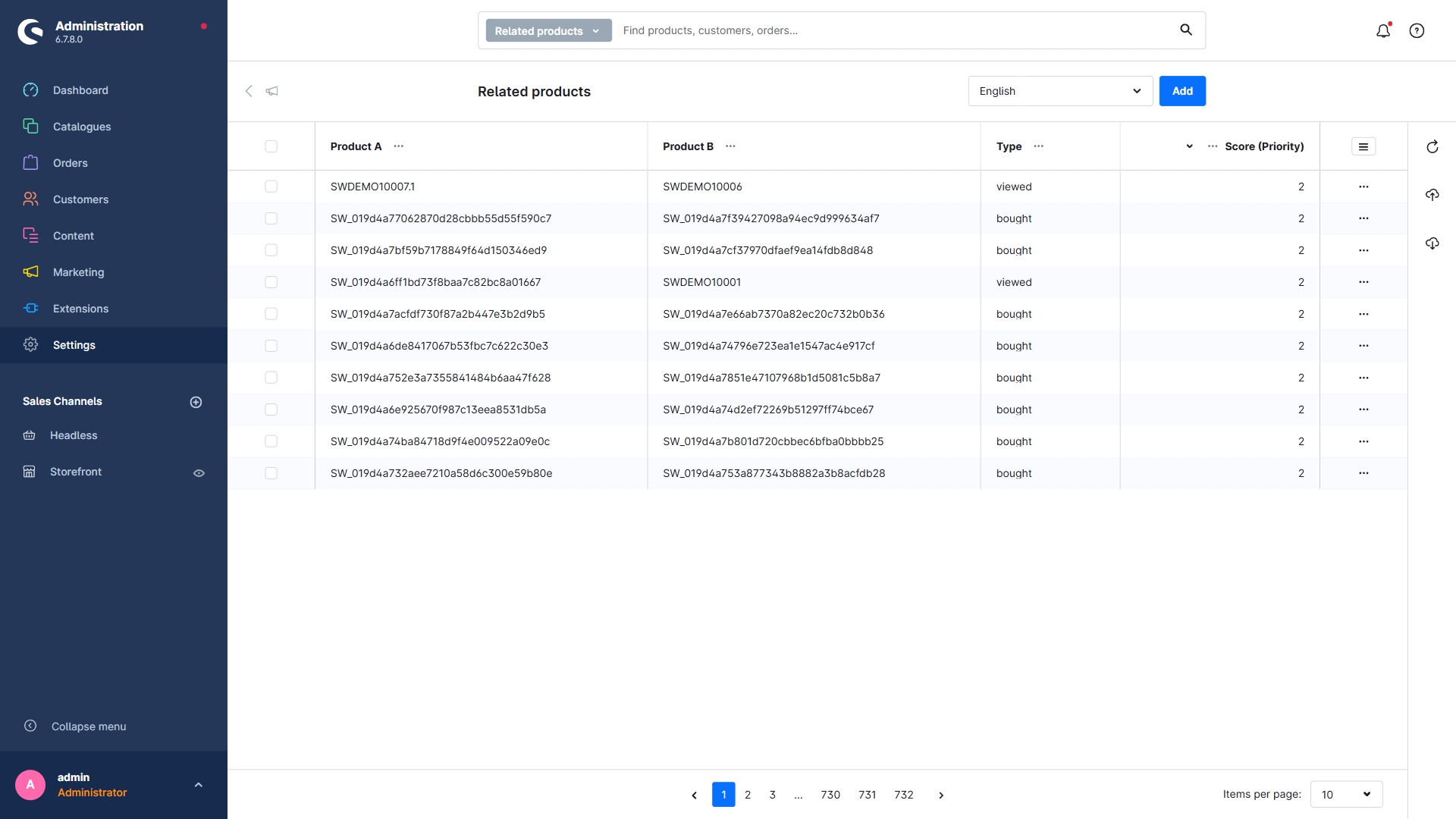
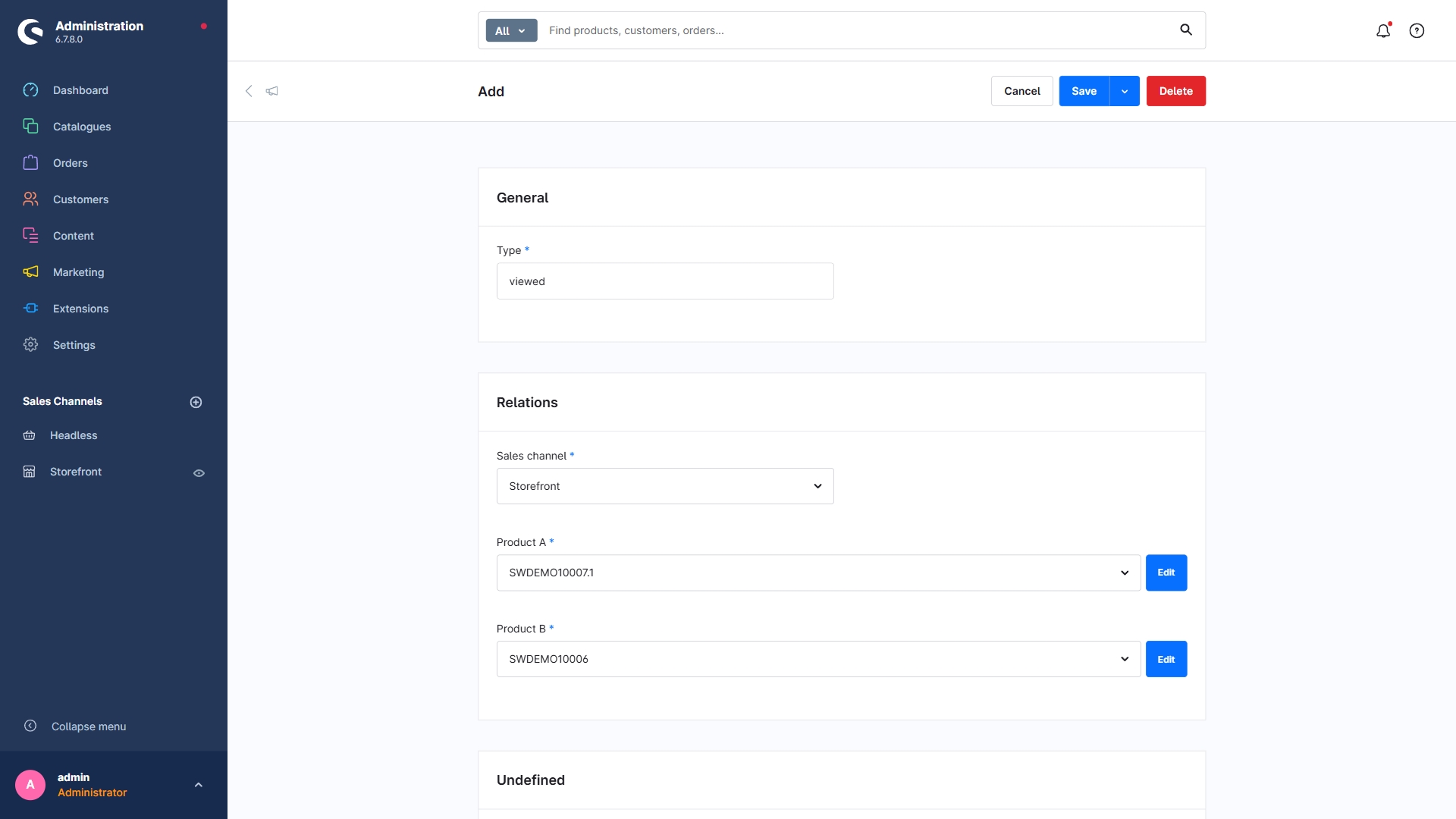
In the main admin navigation under Settings → Related products, you can check whether the command has created the records correctly.
Step 2: Create cross-selling lists
The following command creates the cross-selling lists:
bin/console moorl:cross-selling:update-products
Optionally, the existing cross-selling lists can be removed before they are recreated:
bin/console moorl:cross-selling:update-products -t
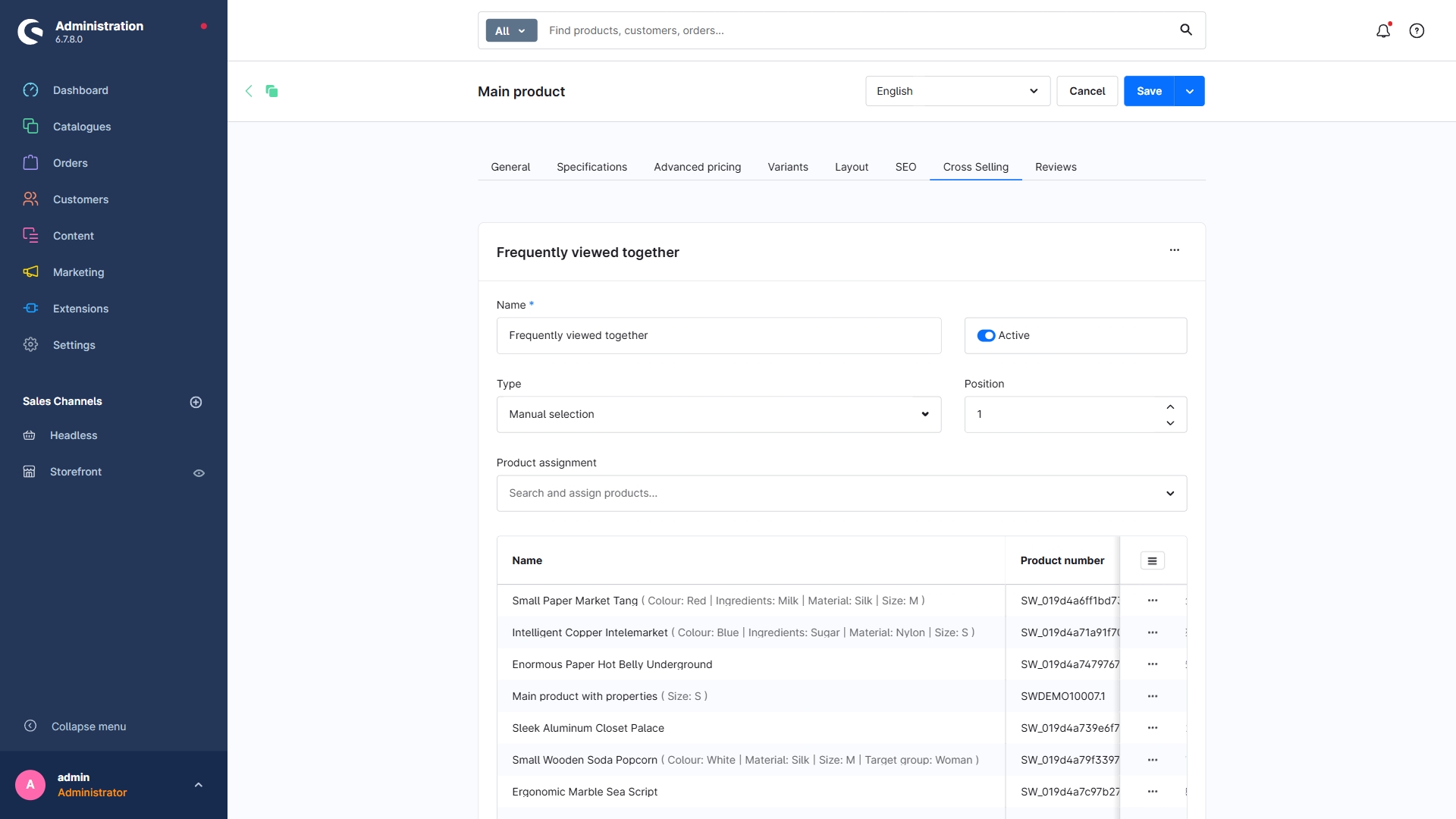
Once the cross-selling lists have been created, they are visible on the product:
Step 3: Clear the cache
After that, clear the cache so the changes become visible in the storefront:
bin/console cache:clear
Storefront display
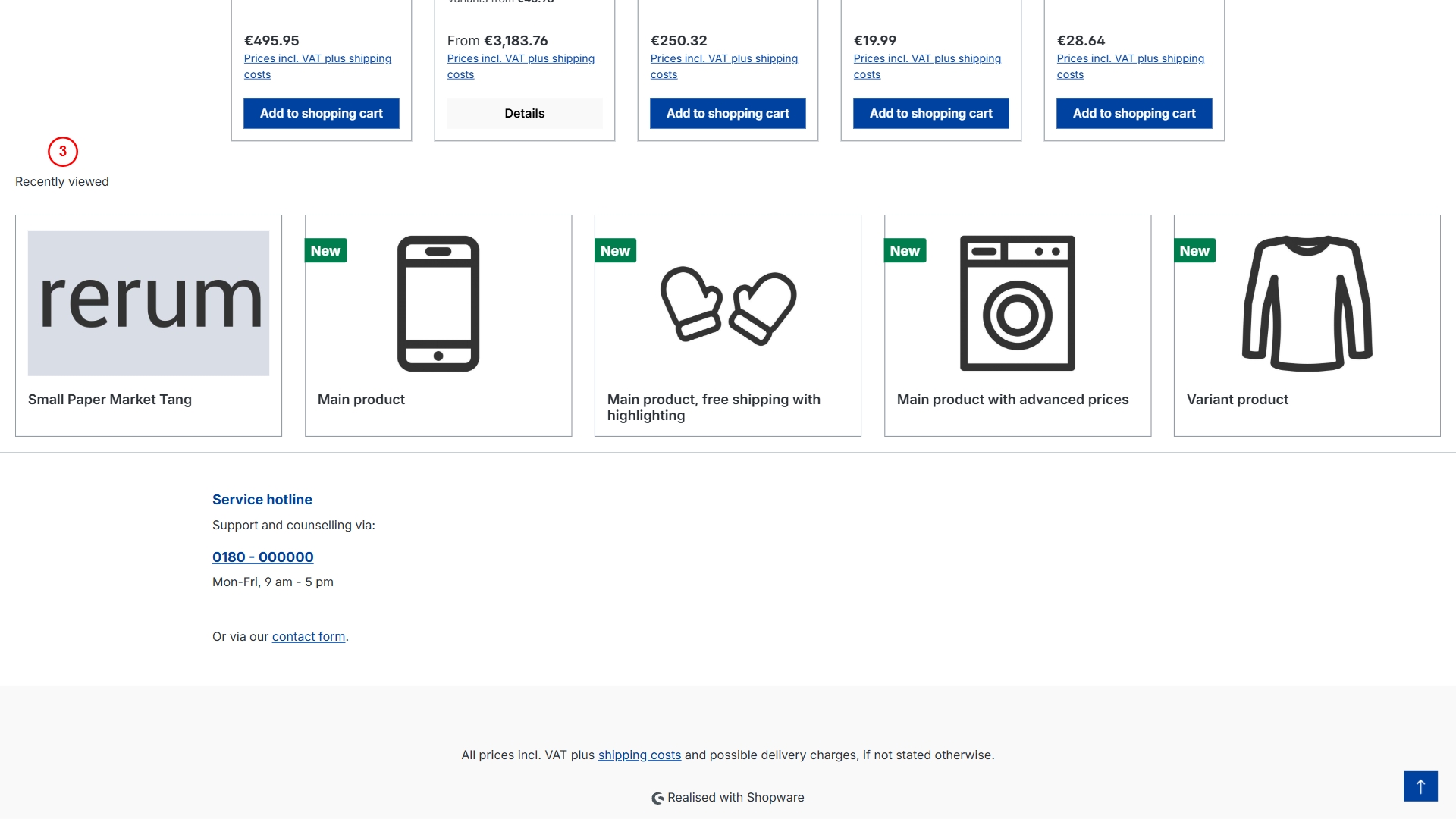
- Frequently viewed together: This list is based on all customer sessions.
- Frequently bought together: This list is based on all orders.
- Recently viewed: This list is based on the current customer session.