Appflix Classifieds
The extension allows customers to advertise their own classifieds. Enhance your store with user-generated content and benefit from better SEO ranking and traffic numbers.
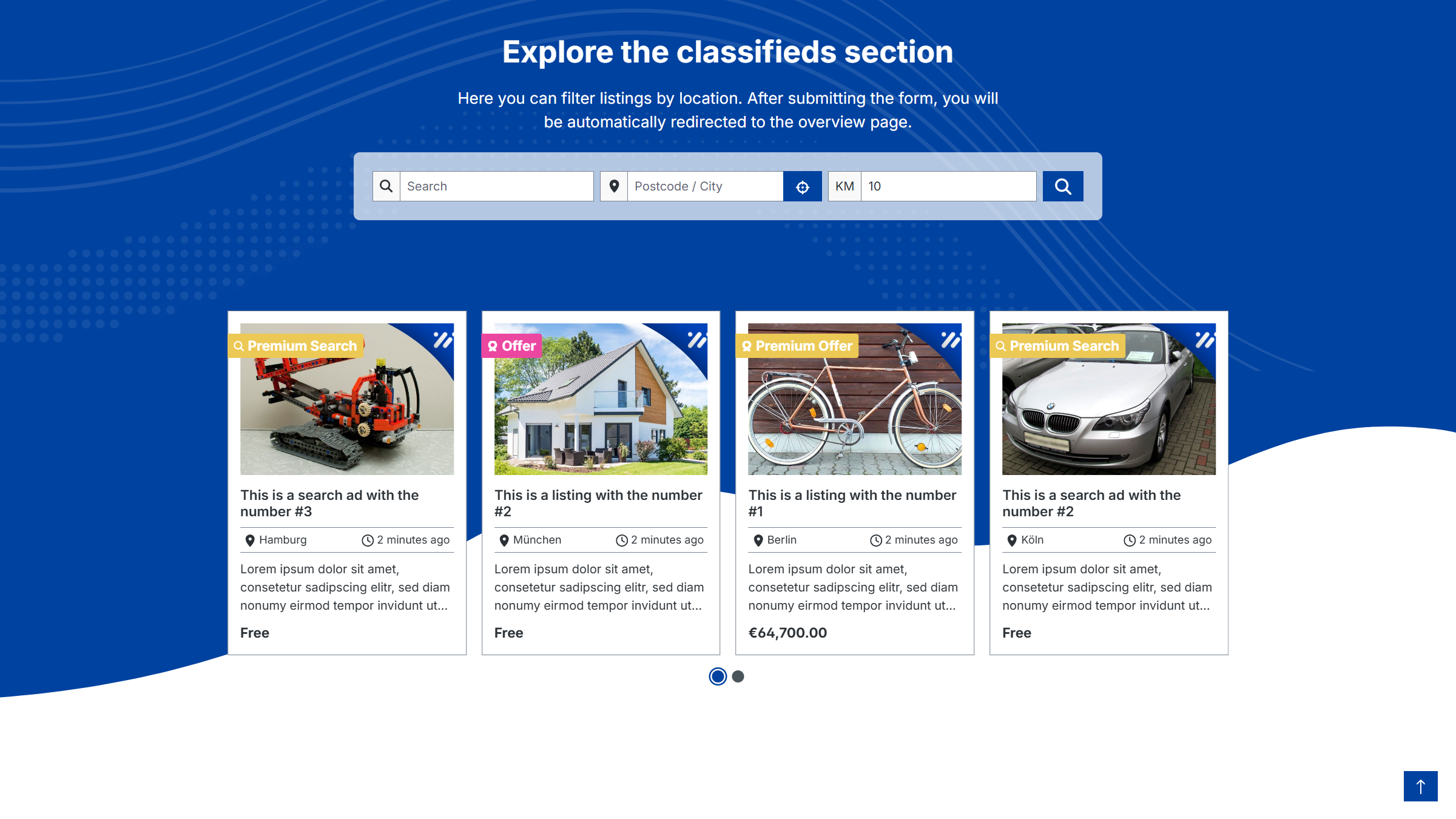
Plugin Demo
A storefront demo is available for testing this plugin. The plugin can be tested at the following link:
Purchase the Plugin
This plugin can be purchased in the Shopware Community Store.
Important note: You need the Foundation Plugin, which is available free of charge: moori Foundation
Quickstart
A demo package is available for testing this plugin.
Go to Settings → Demo Assistant and select AppflixCustomerMarket.
Note: In some cases, new categories and pages will be added to your shop. Please note that the demo data is provided for testing purposes only. The images included may be protected by copyright and must not be made publicly available.
Planning
What can this plugin do?
- Customers can create their own classified ads through the customer area.
- Publishing an ad can optionally be subject to a fee.
- The seller’s contact details can be hidden or unlocked for a fee.
- A dedicated customer marketplace and community can improve SEO rankings.
- Classified ads can be positioned more prominently through paid boosts, for example by appearing in a slider on the homepage.
What can this plugin not do?
- Classified ads cannot be purchased through checkout: classified ads are not products. Interested parties must contact the seller directly.
- Classified ads can neither be listed in the product listing nor mapped within the same category structure.
Additional notes
- The classified ads require their own main category containing all subcategories for the classified ads.
- The input fields for classified ads can be extended using custom fields and template adjustments.
- Classified ads can also be created and managed in the admin area.
Initial setup
Create categories
Create a main category for all classified ads and, to get started, two or three subcategories.
Via the main navigation in the admin: Catalogues → Categories
Assign the plugin’s CMS page to each category: All Classified Ads
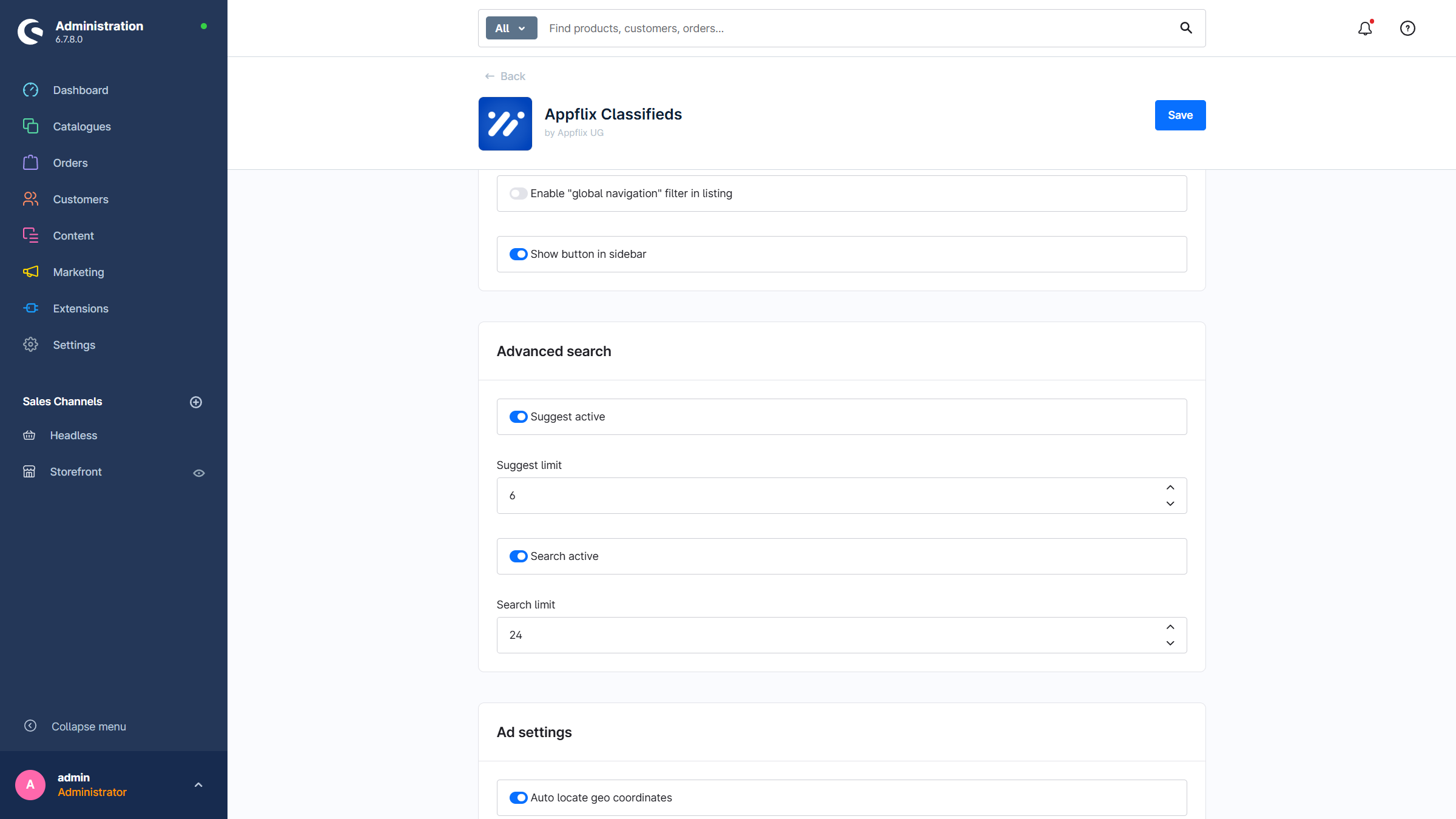
Basic configuration
Via the main navigation in the admin: Extensions → My Extensions → Appflix Classified Ads → Configure
- Active: The plugin is active in this sales channel.
- Private mode: The seller’s contact details are only visible once the customer is at least logged in.
- Show more ads from the seller: On the classified ad detail page, additional ads from the same seller can optionally be displayed.
- Category page with all classified ads: Main category for all classified ads (created in the first step).
- Detail form for classified ads: Optional fields that can be specified for a classified ad.
- Boost options: Which boosts are available? (Boost Top can be used immediately with the default CMS page
All Classified Ads.) - Show subcategories in listing: Option to filter by subcategories in the listing.
- Show global navigation in listing: All main categories are displayed in the listing’s category tree (not recommended).
- Show button in the sidebar: A button for creating a new classified ad.
- Advanced search: Foundation | Advanced Search
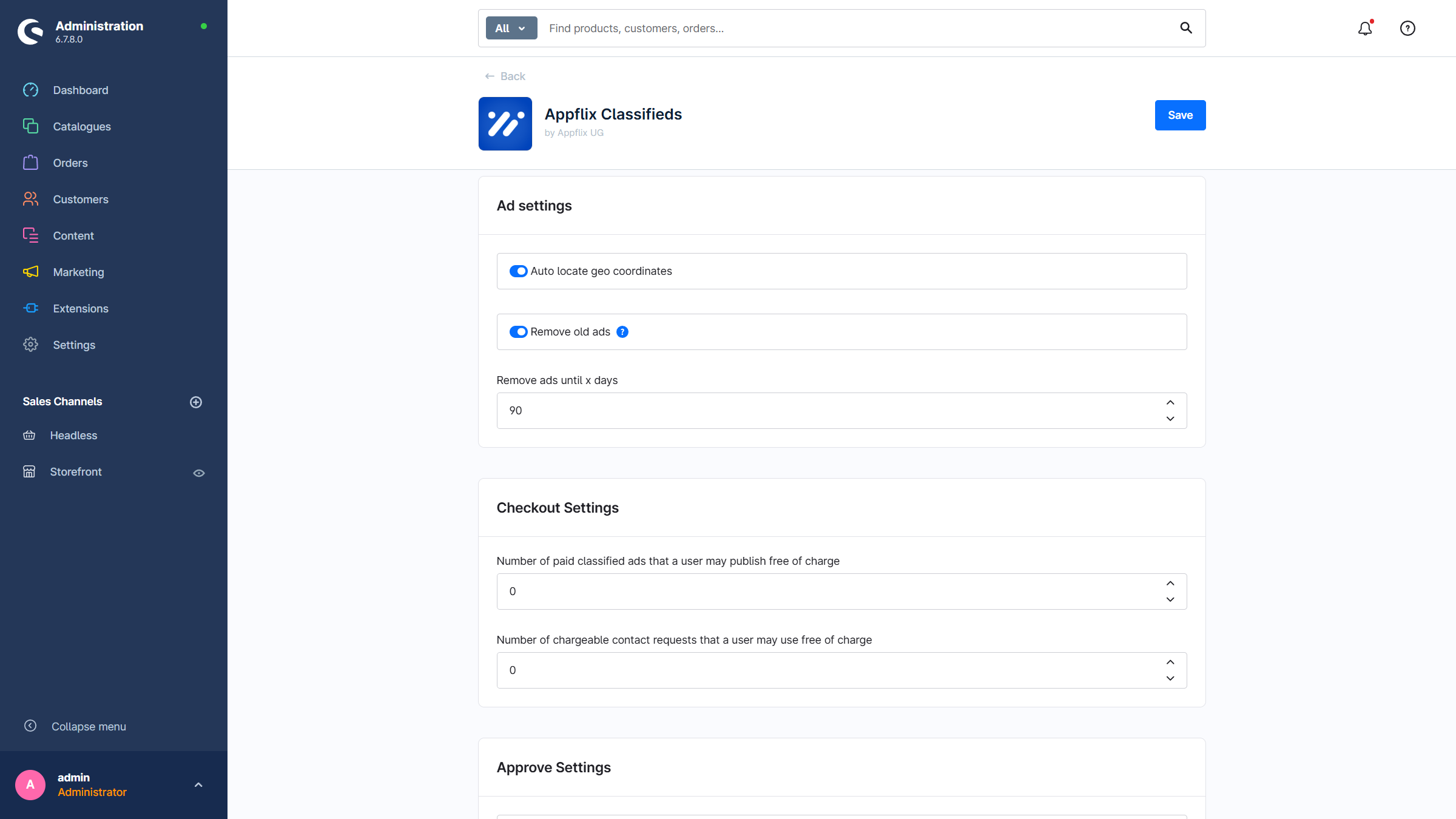
- Automatically determine geo-coordinates: The position is determined based on the address. This also allows searching by distance. (Warning: Incorrect address information slows down the creation of a classified ad.)
- Remove old classified ads: Once a classified ad is older than X days and has no active boost, it is automatically removed.
- Remove classified ads after X days
- Number of paid classified ads a user can publish free of charge
- Number of paid contact requests a user can use free of charge
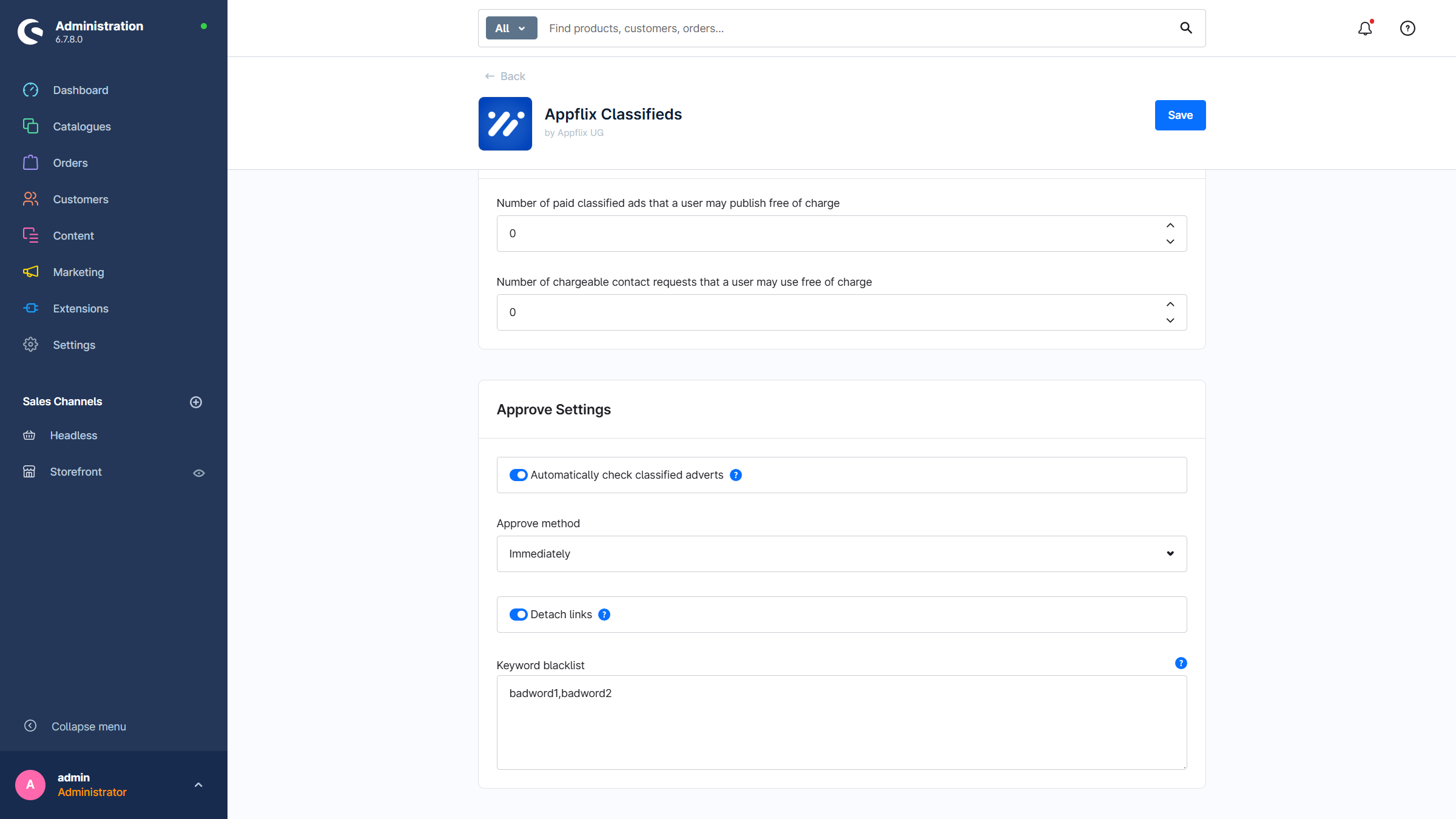
- Automatically review classified ads: If this option is active, classified ads are automatically reviewed and approved. Otherwise, the shop operator must approve the ads manually.
- Approval method
- Remove links: If this option is enabled, URLs are removed from descriptions. This prevents users from placing self-promotional content.
- Keyword blacklist: These words can be removed from the description. Words containing parts of the entered terms are also removed.

Create ad types
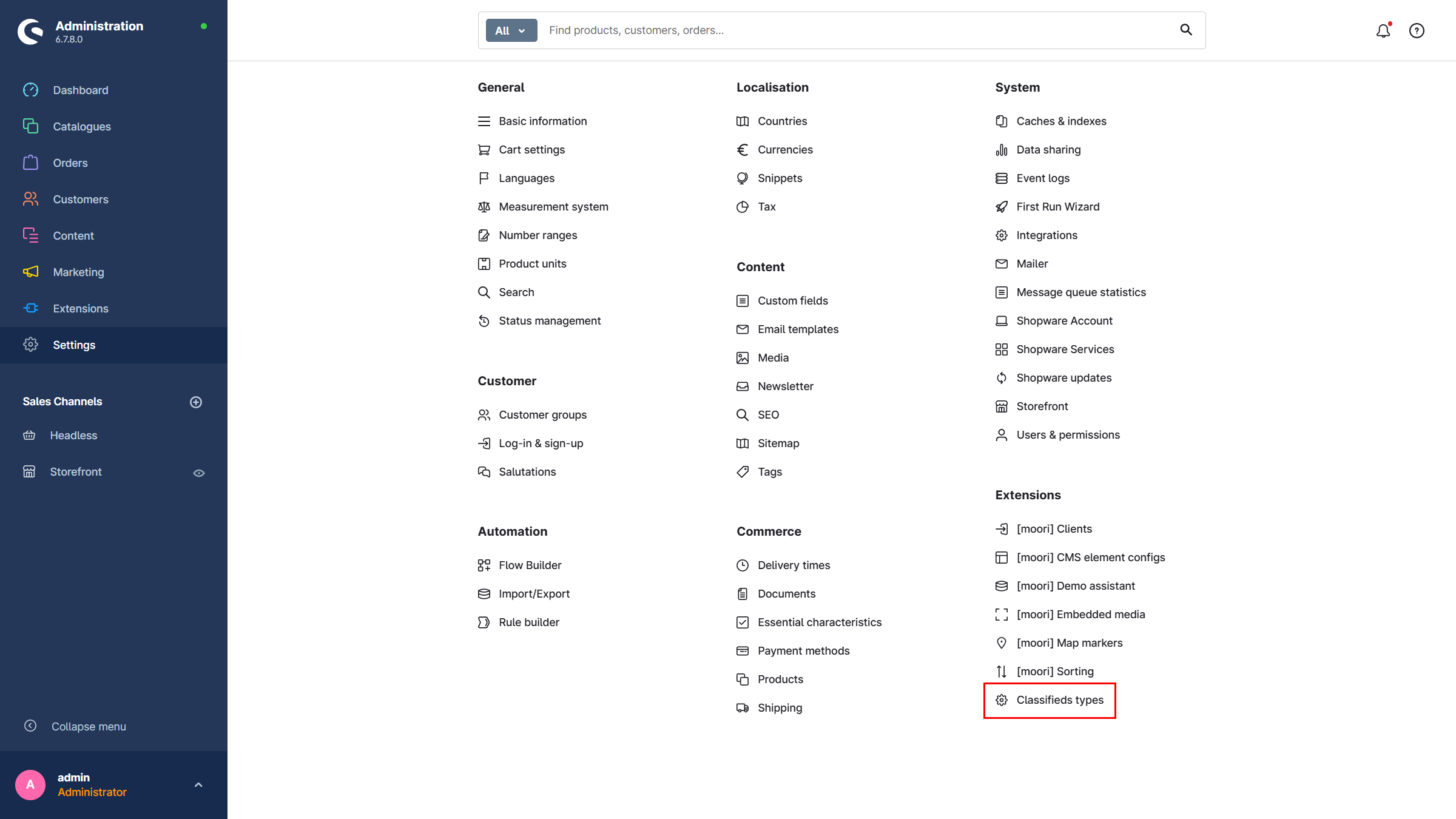
Via the main navigation in the admin: Settings → Classified Ad Types → Add
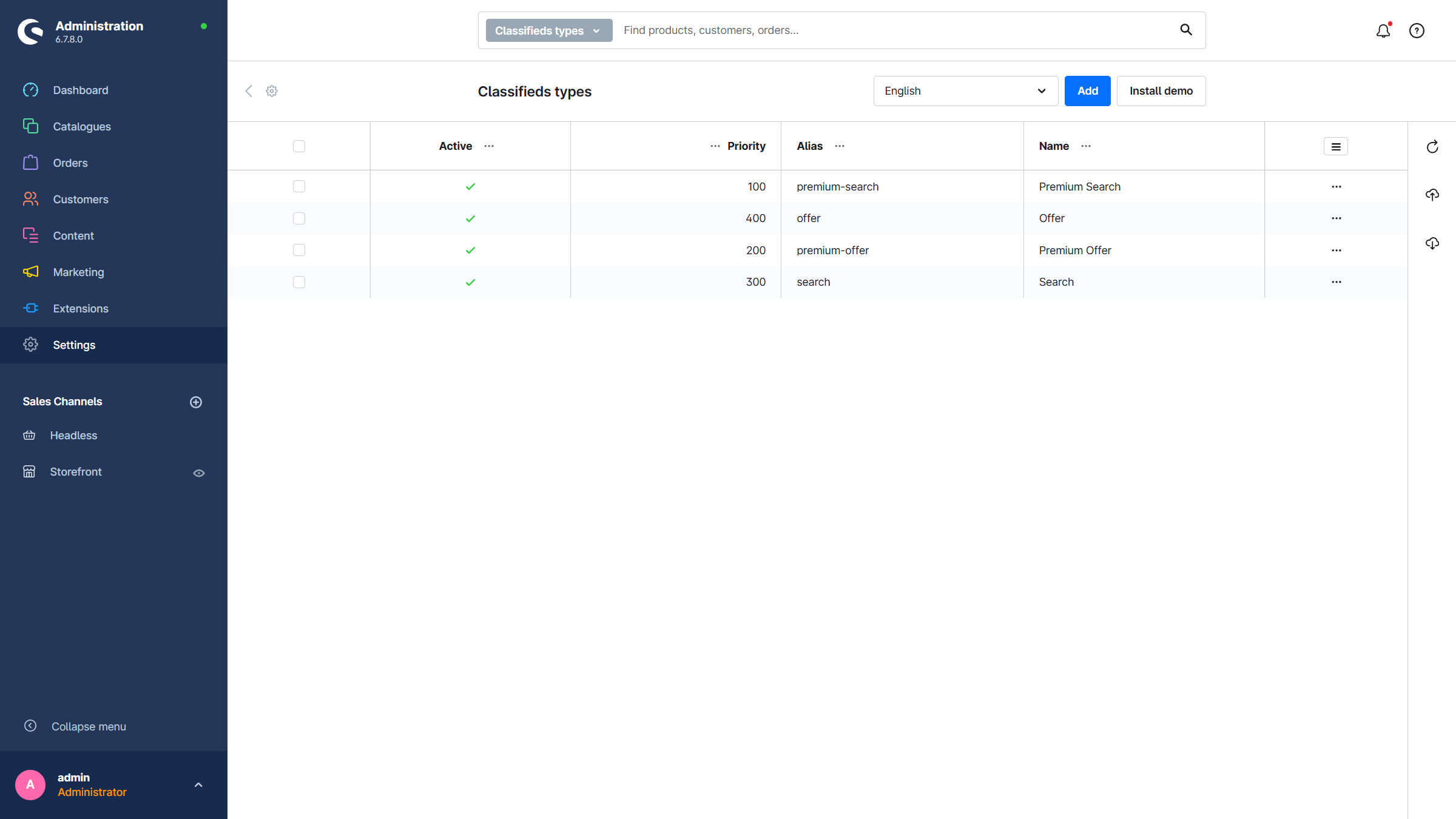
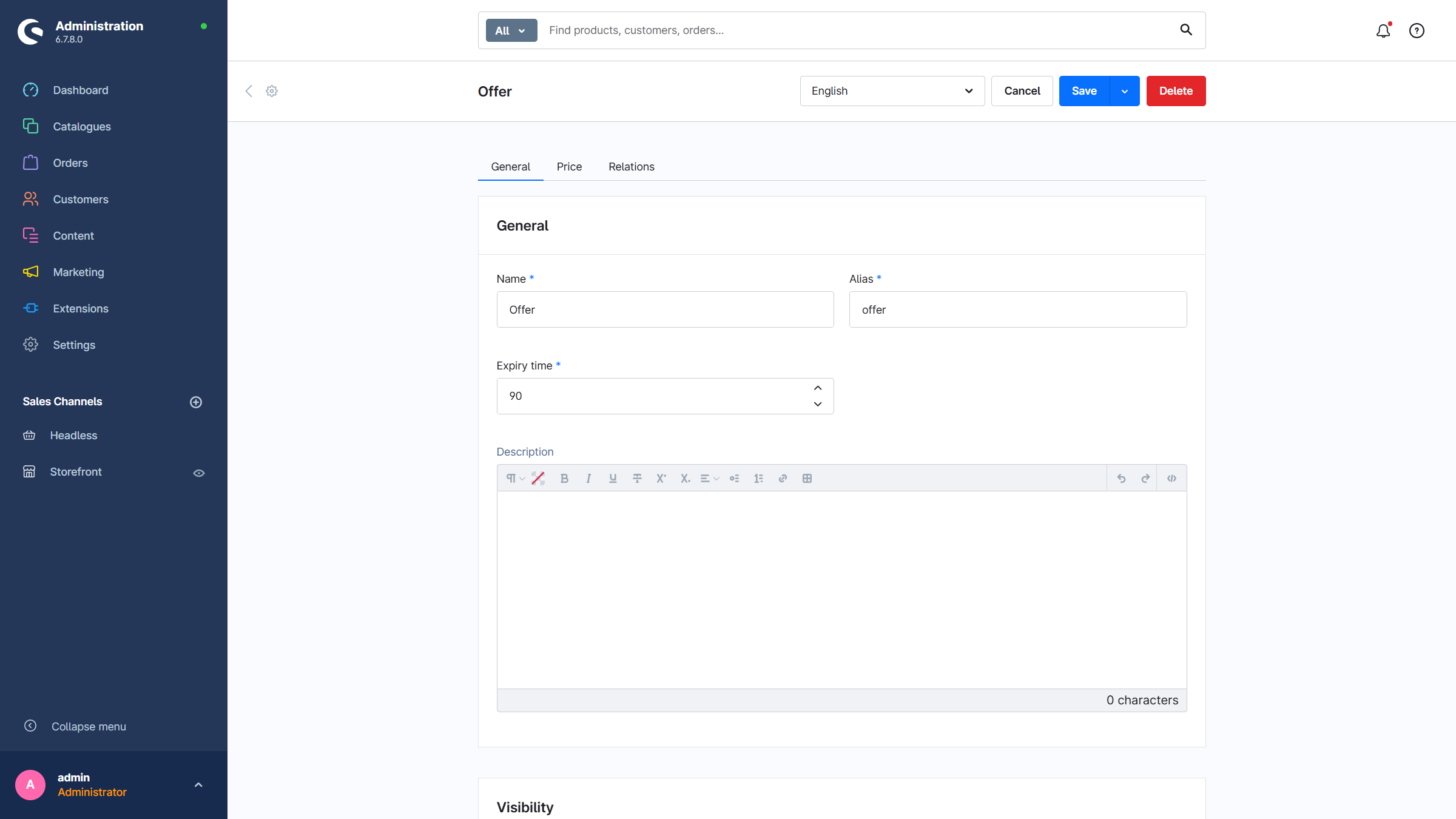
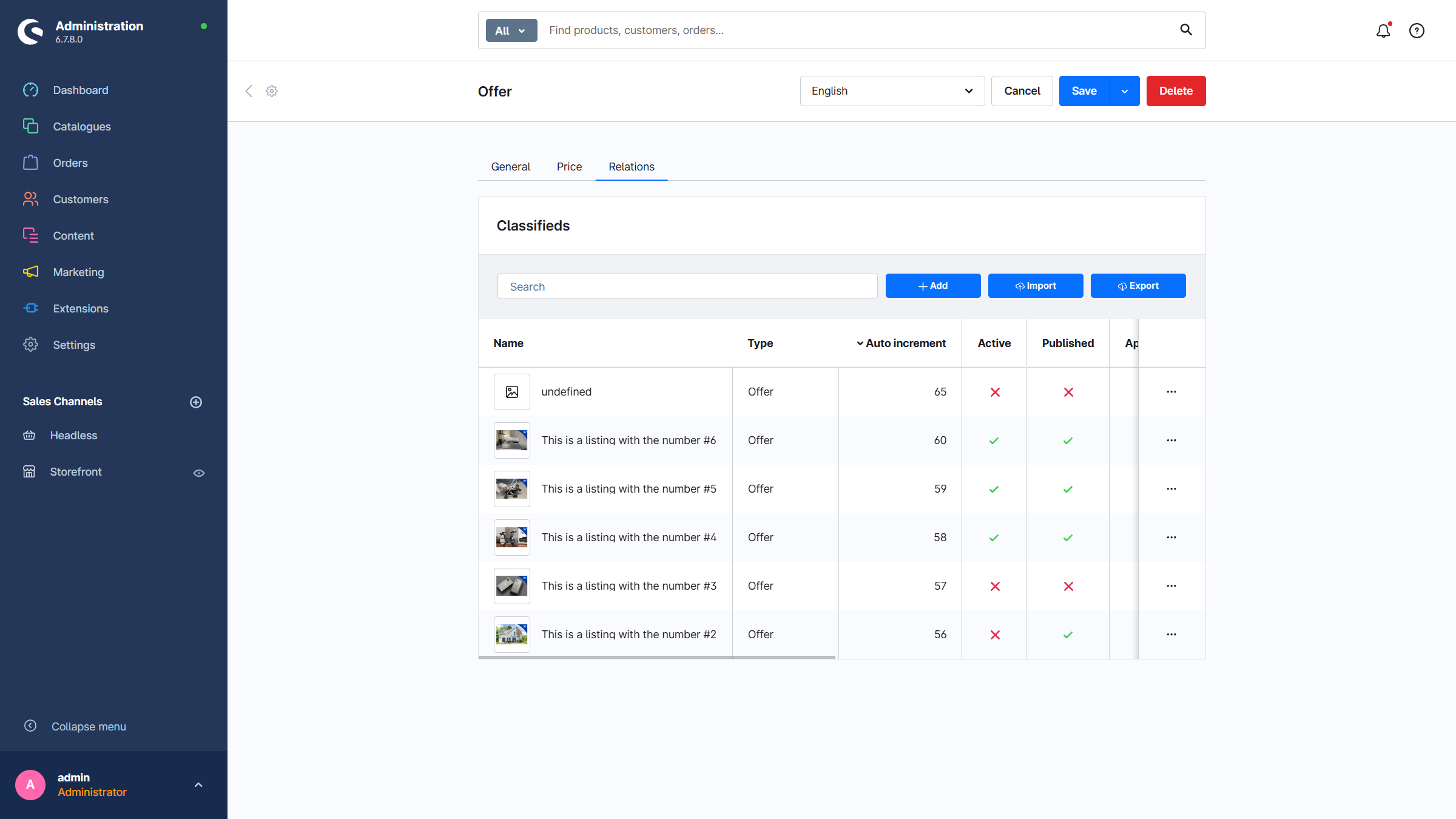
General information
- Name: The name of the type
- Alias: Technical name / short form
- Expiration time: Period after which a classified ad is deleted
- Description: Short description of the type
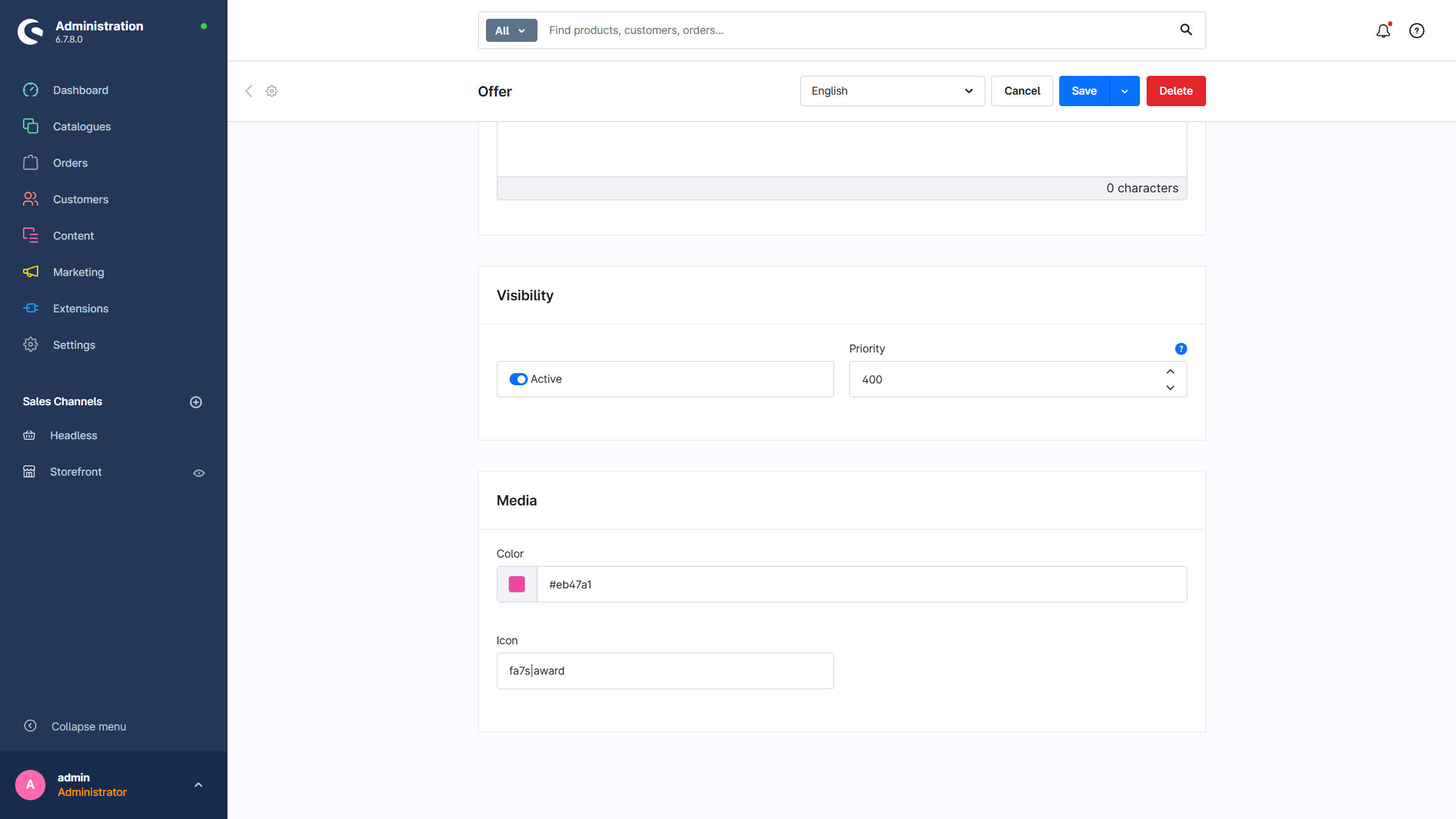
- Active: Type is active
- Priority: Higher priority = listed further up
- Color: Visual highlighting of the type
- Icon: Symbol of the type, e.g.
fa7s|search(Font Awesome 7 Solid → Search) - Foundation | SVG Icons
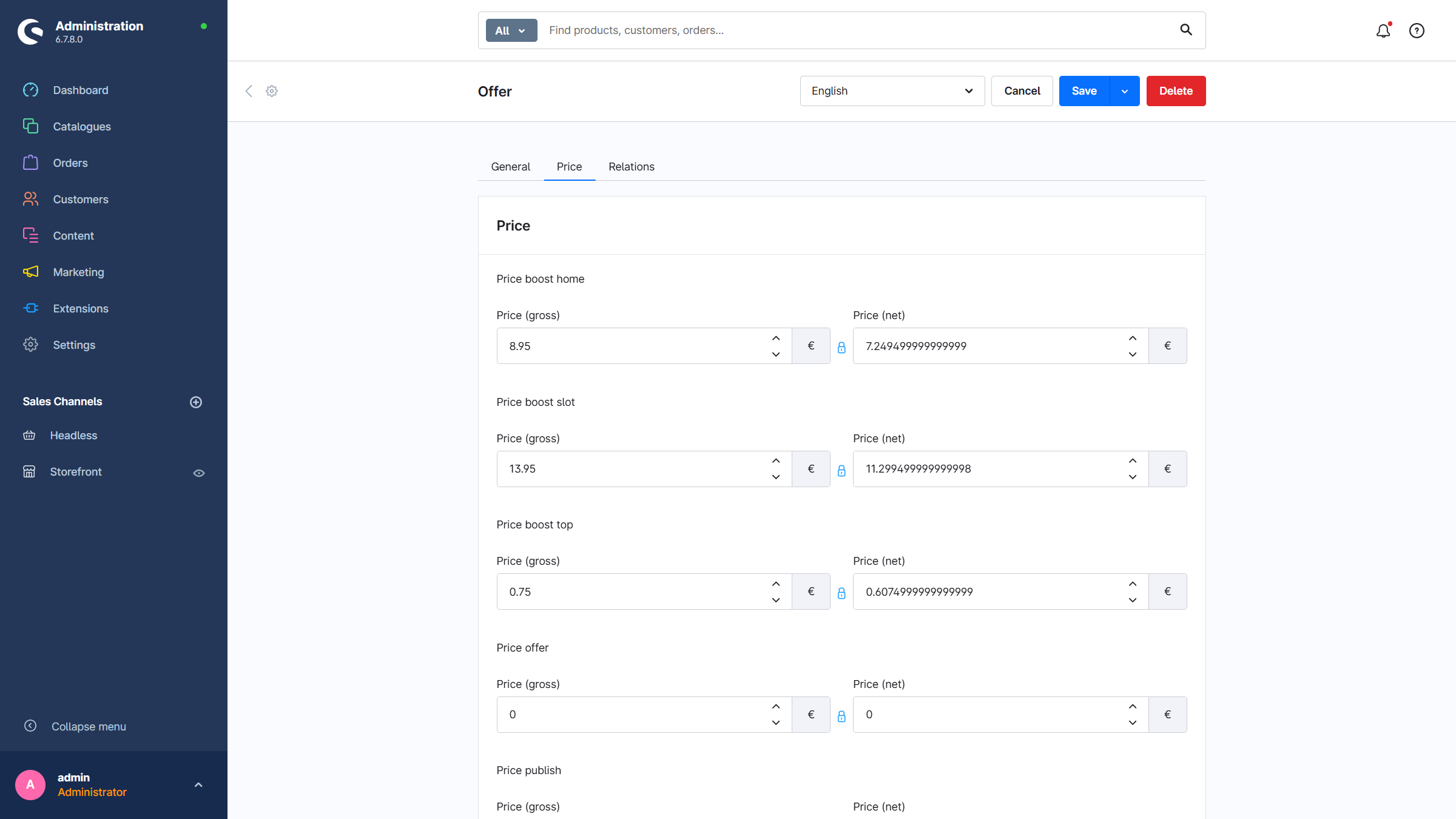
Prices
- Homepage boost: Price to display the classified ad on the homepage (a CMS listing element is required on the homepage)
- Boost slot: Alternative to homepage boost
- Boost top: Price to display the classified ad at the very top of the listing (a CMS listing element is required on the listing page)
The boosts can optionally be disabled via the plugin configuration. In the listing CMS elements placed, for example, on the homepage or above the main listing, there is a corresponding filter for all three boosts that must be activated. One unit corresponds to 24 hours.
- Offer: Price to unlock the buyer’s contact details (one-time)
- Publication: Price to publish a classified ad (one-time)
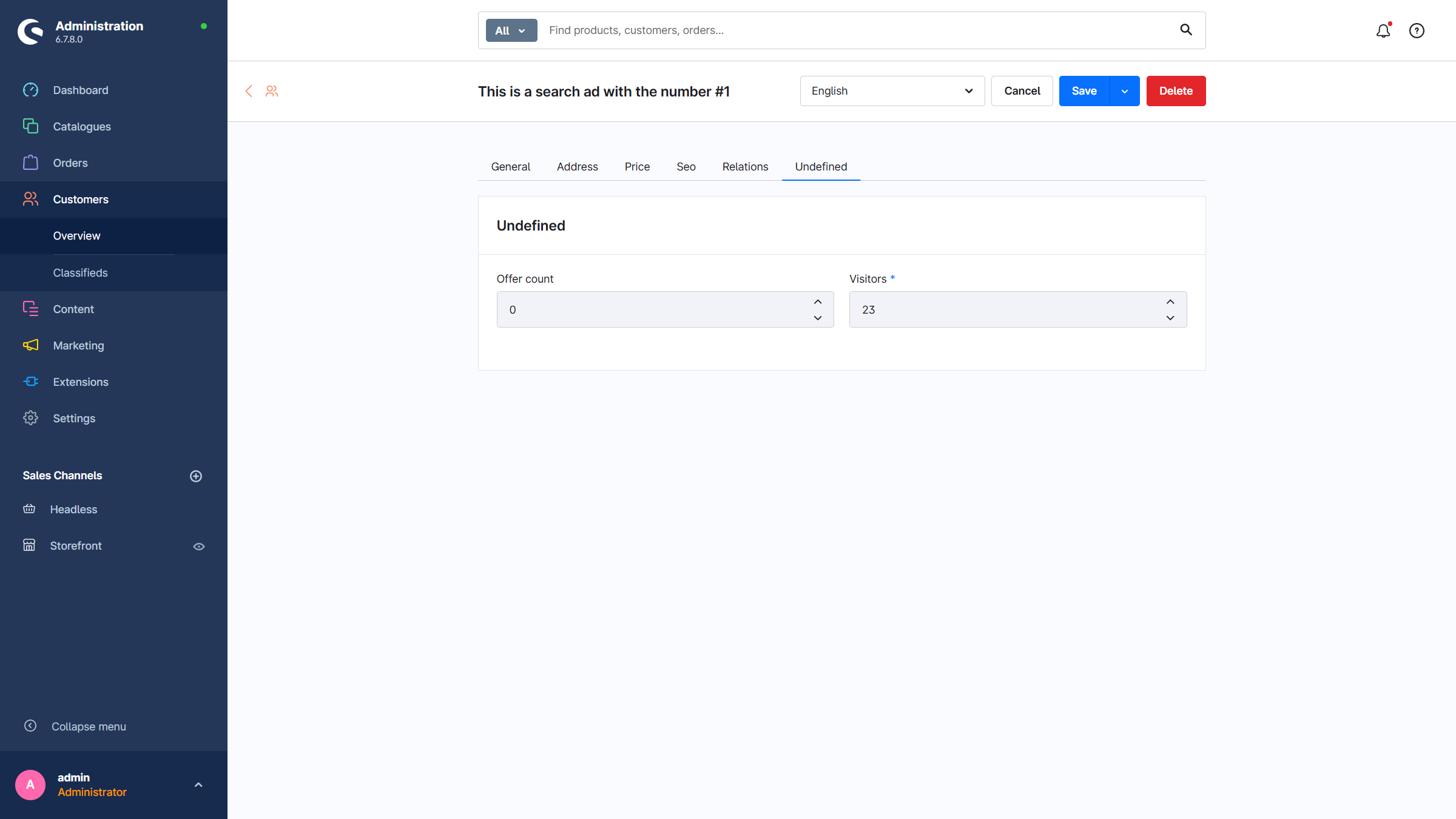
Create classified ads (Admin)
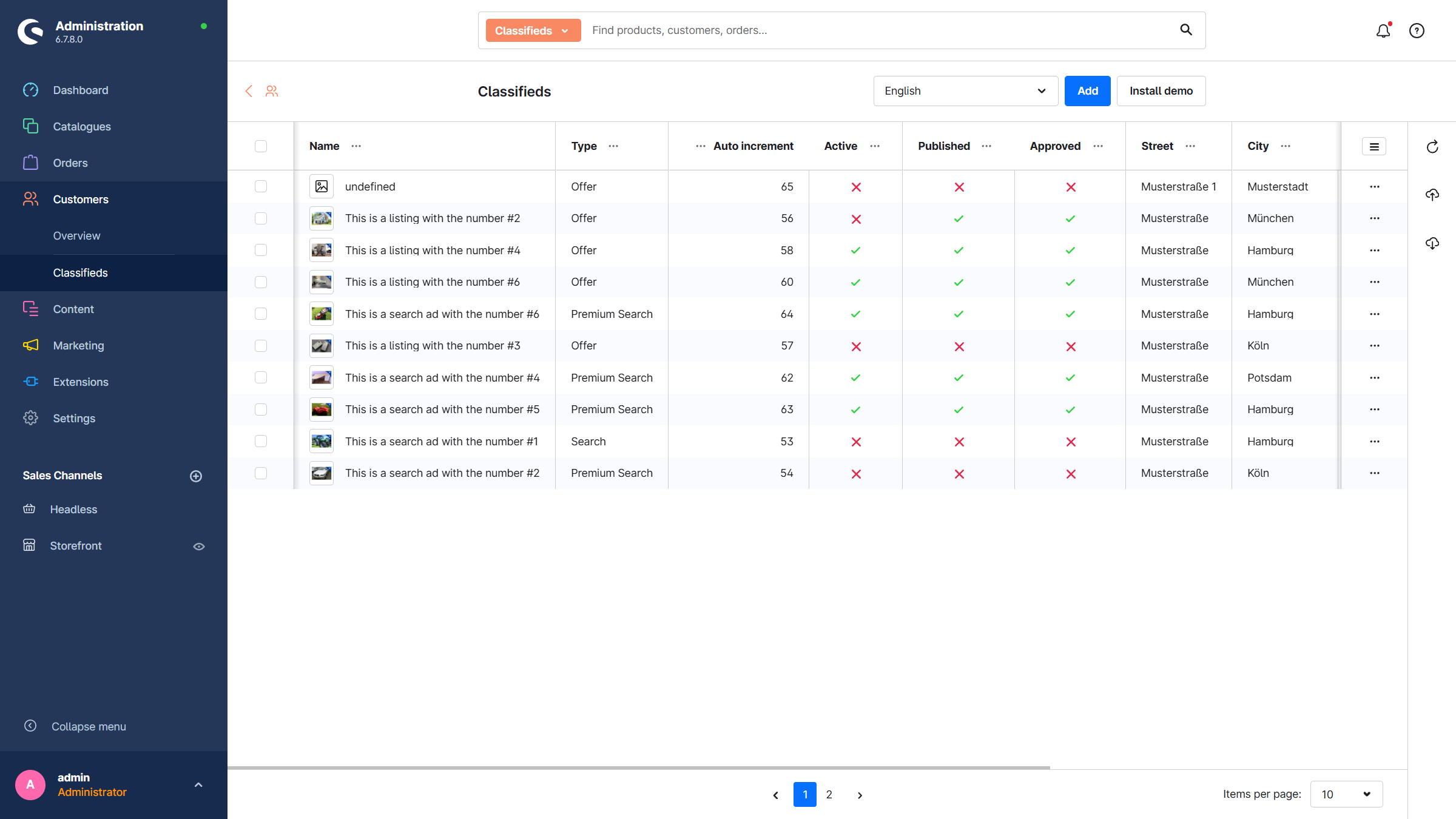
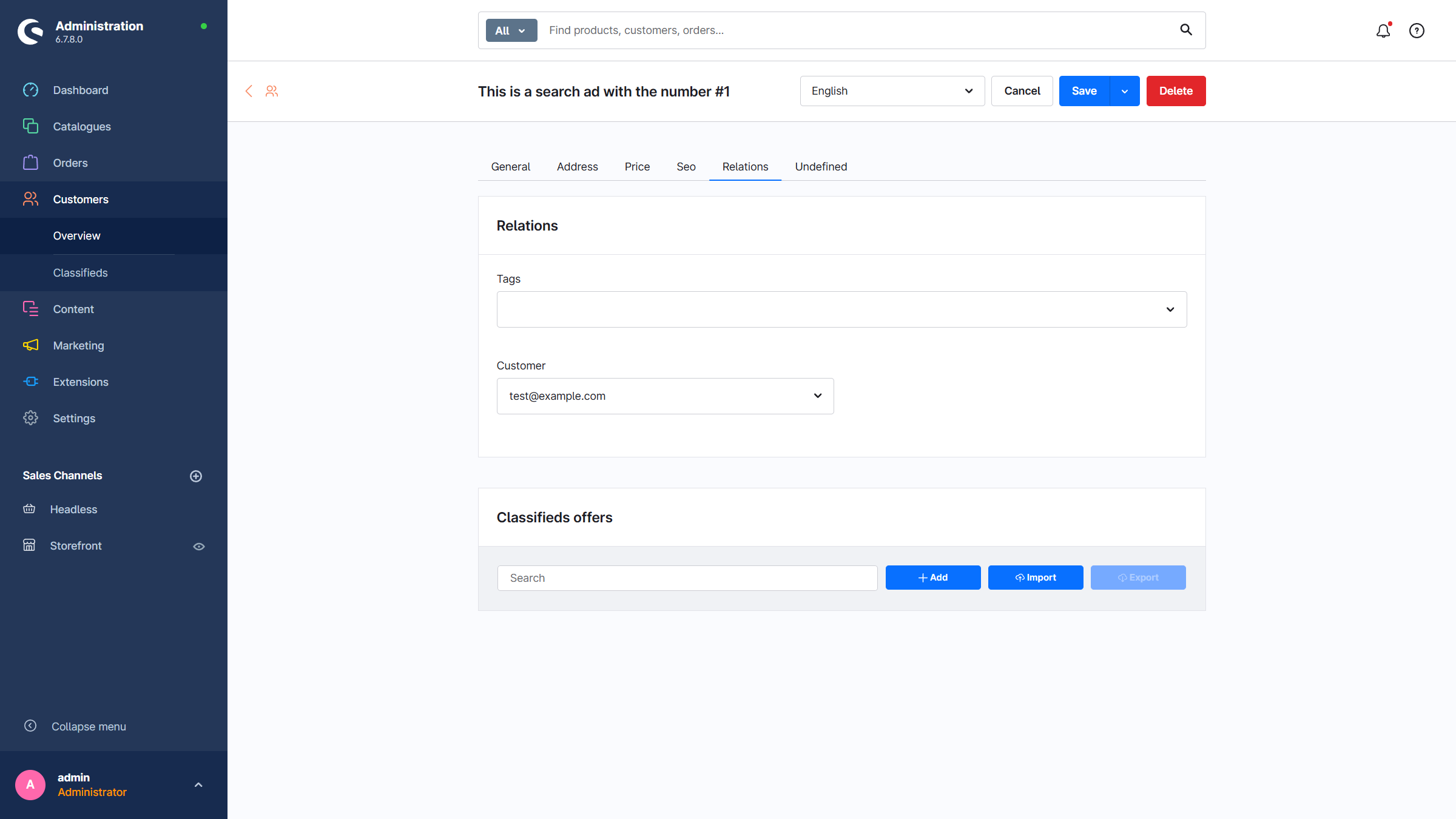
Via the main navigation in the admin: Customers → Classified Ads → Add
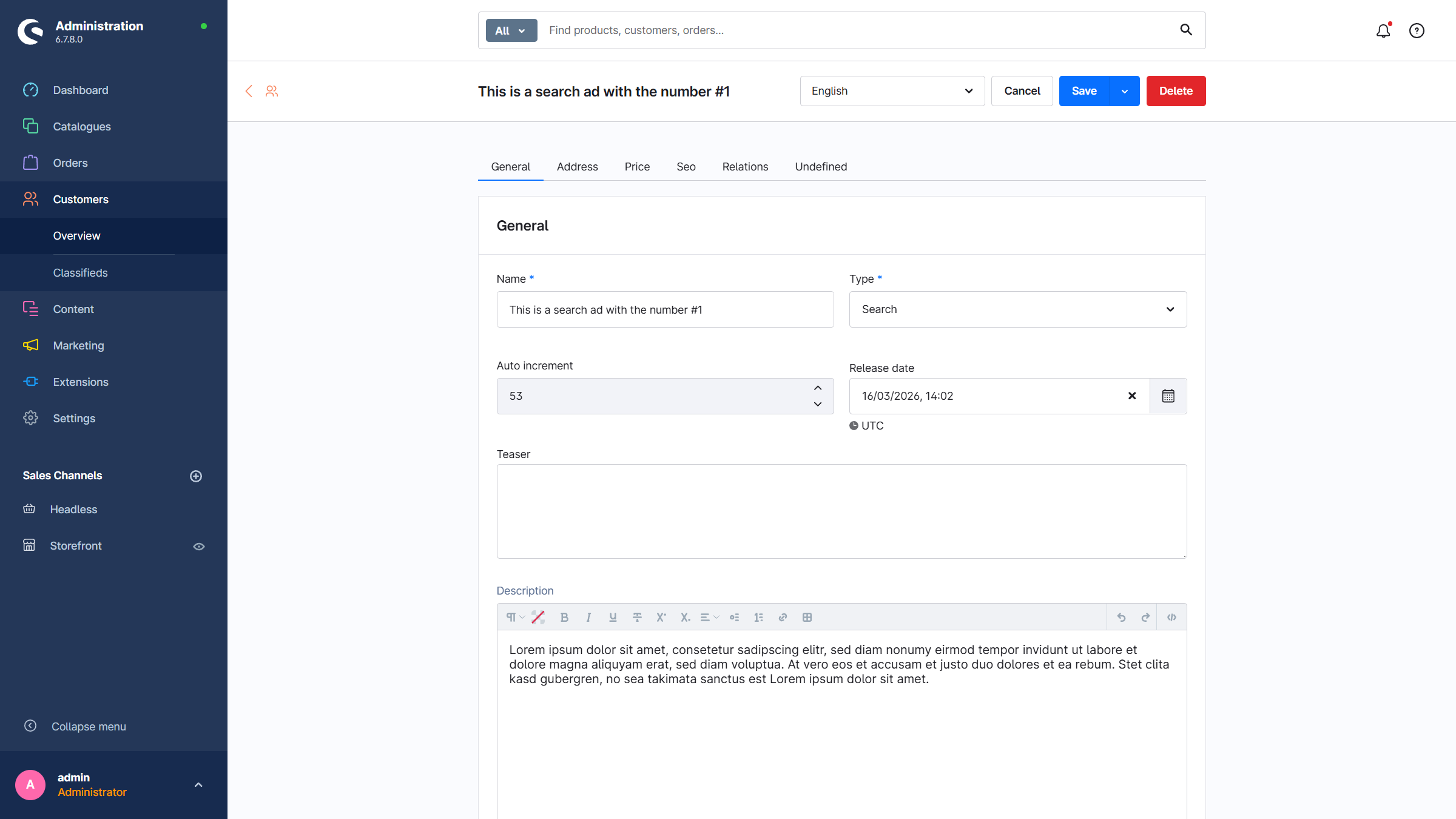
General information
- Name: The name of the classified ad
- Type
- Auto increment: Counter (if a classified ad is created in the storefront, the media files are stored in the folder
Classified Ads→Counter Number) - Short description
- Description
- Keywords
- Manufacturer number
- EAN
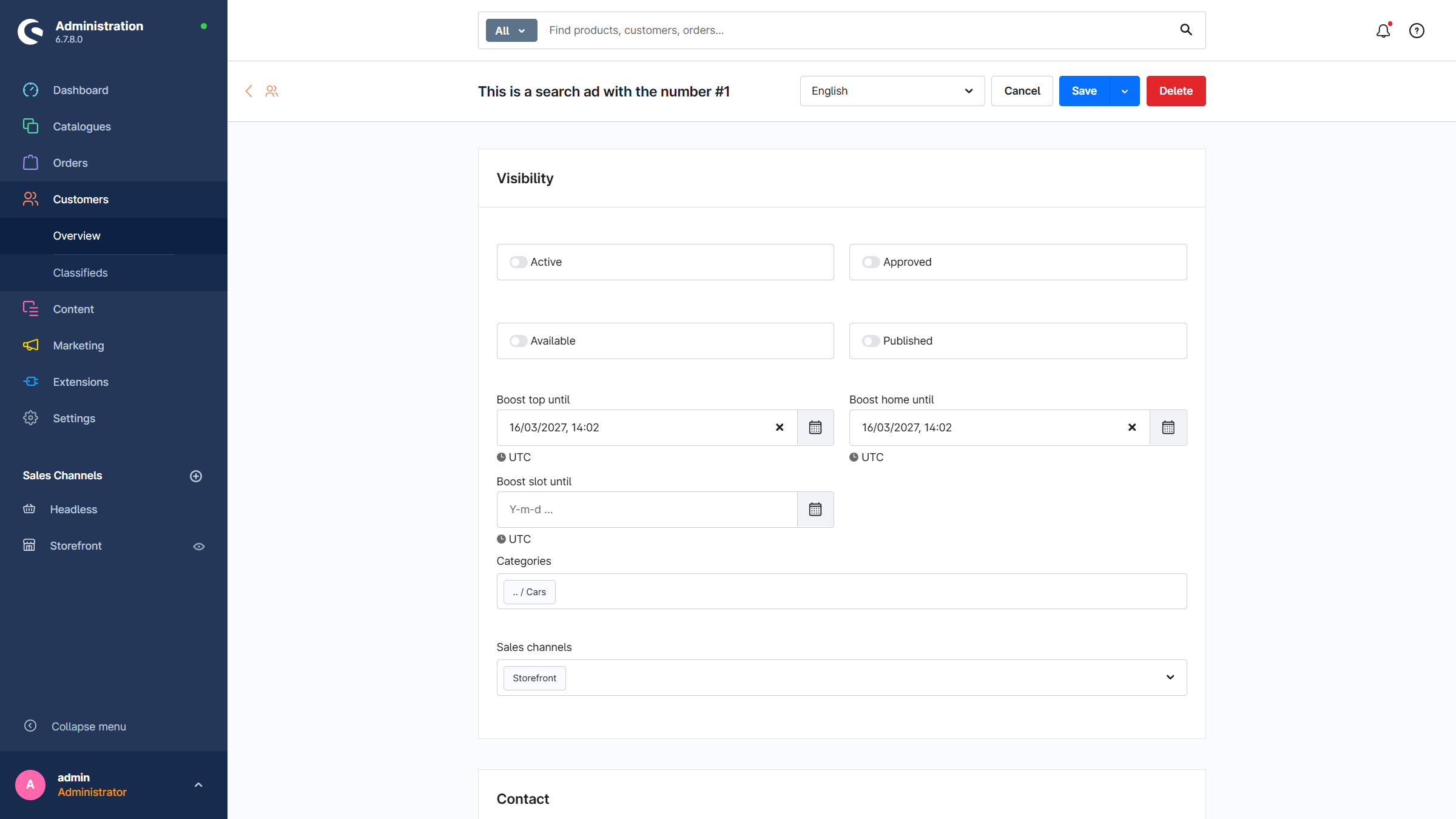
- Active
- Approved: The classified ad has been approved (automatically or manually)
- Available: The classified ad is available
- Published: The classified ad is published
- Boosting: Expiration date and time of the respective boost
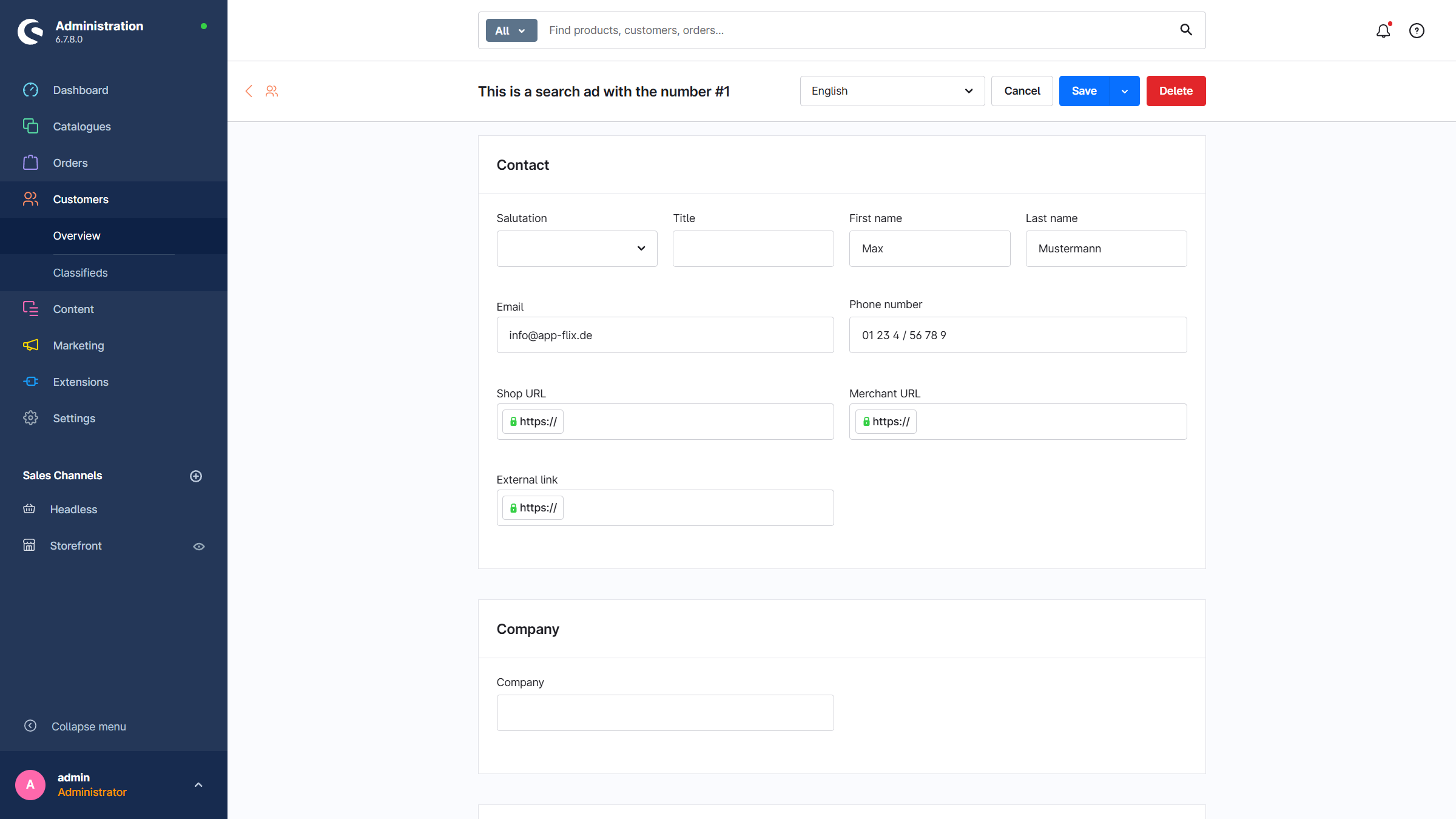
- Seller contact information
- Company name: If the seller is selling commercially
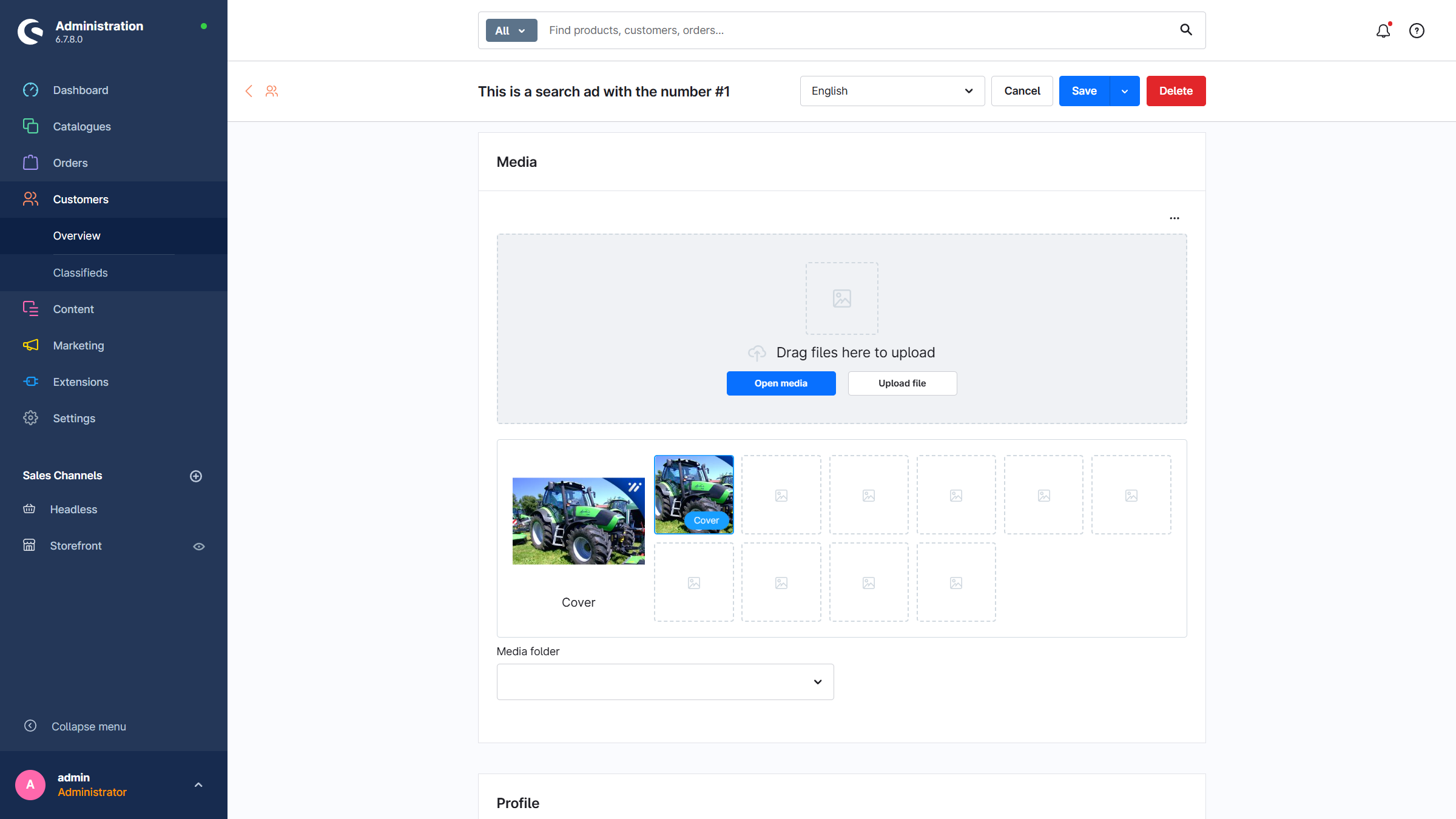
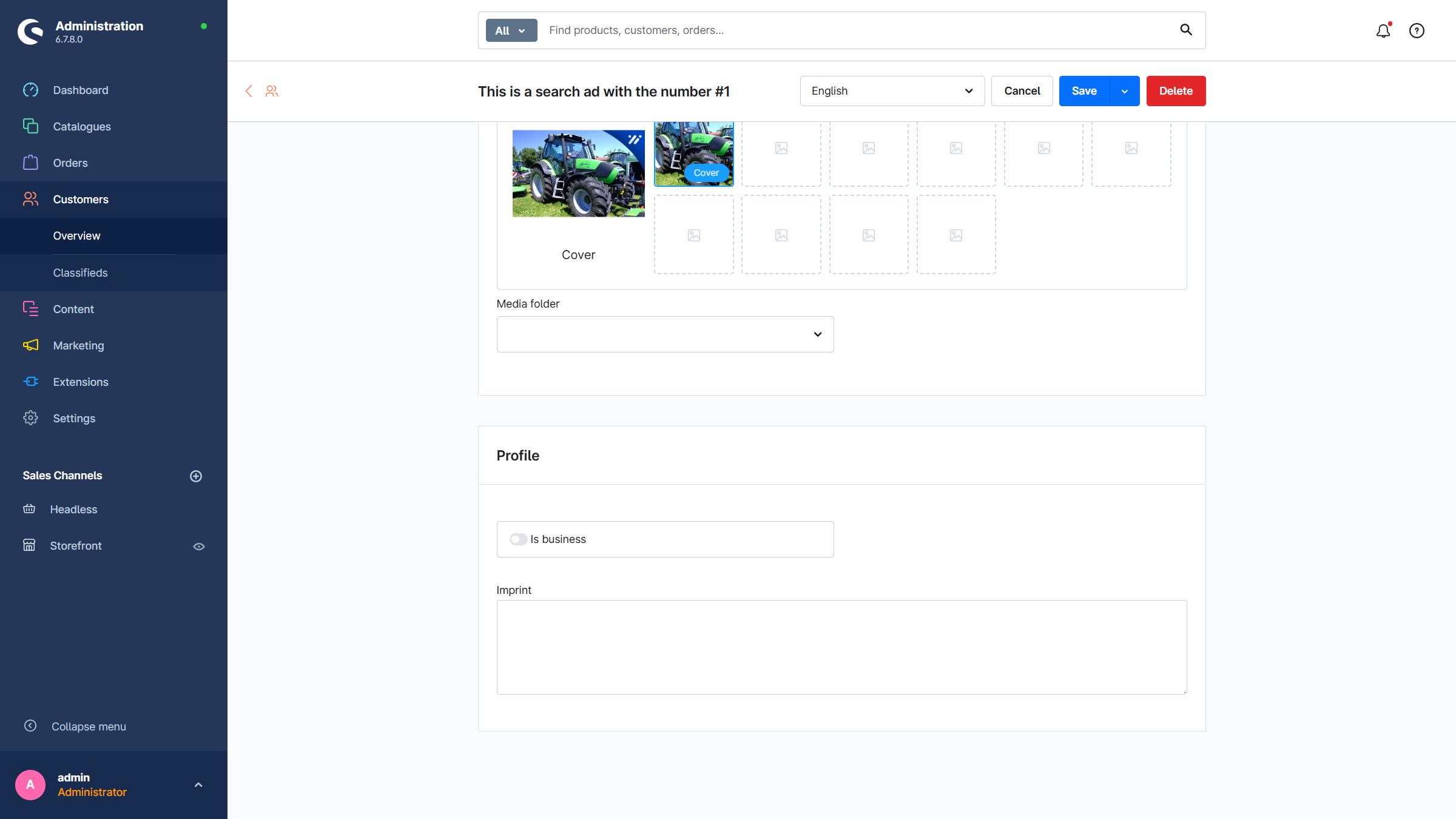
- Media: Images for the classified ad
- Media folder: Storefront media uploads are stored in this folder
- Commercial seller: If the seller is selling commercially
- Legal notice: Mandatory information for commercial sellers
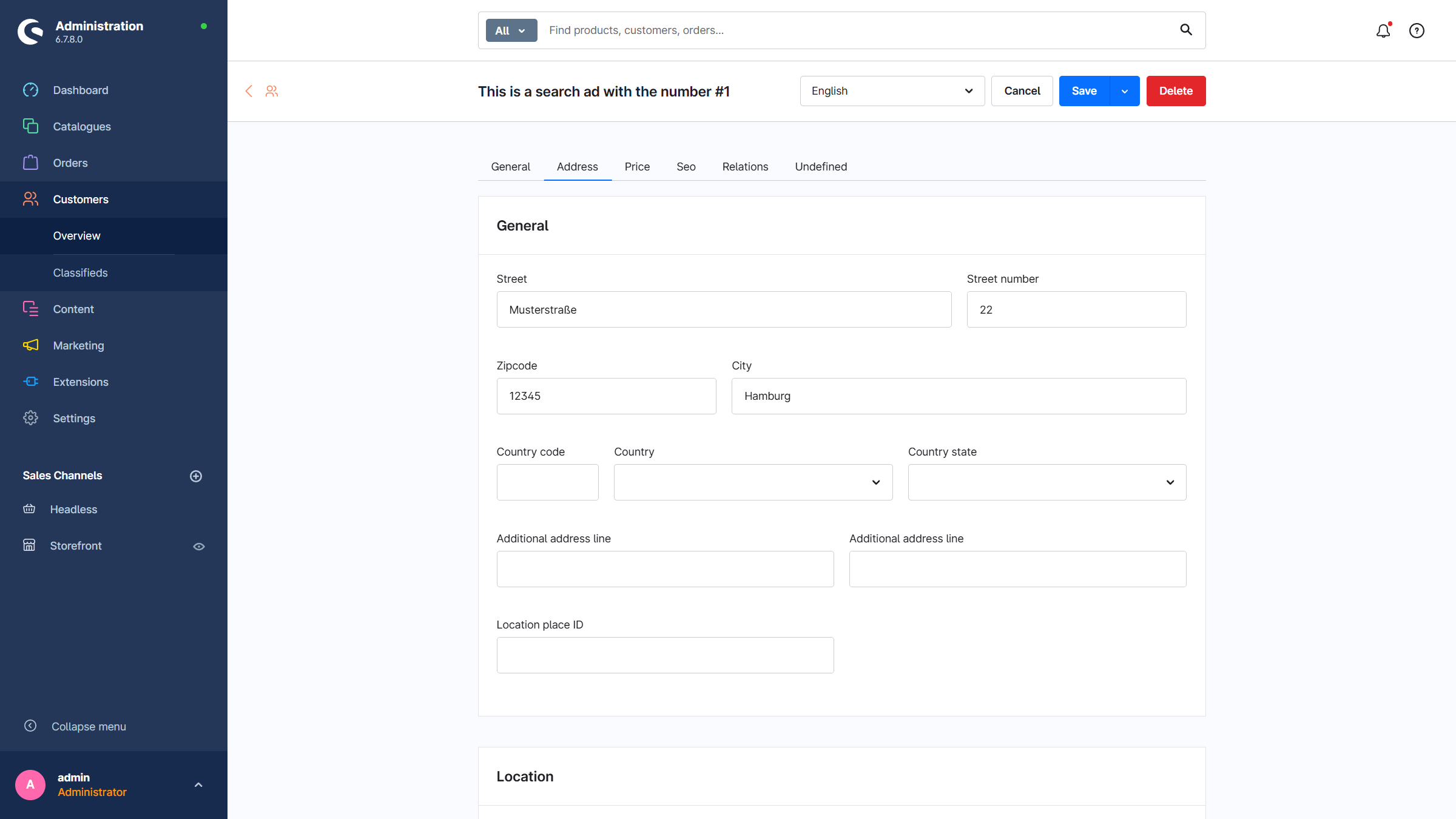
Address
- Address: Full address of the seller or the classified ad
- Geo-coordinates: Are determined automatically if
Auto Locationis enabled
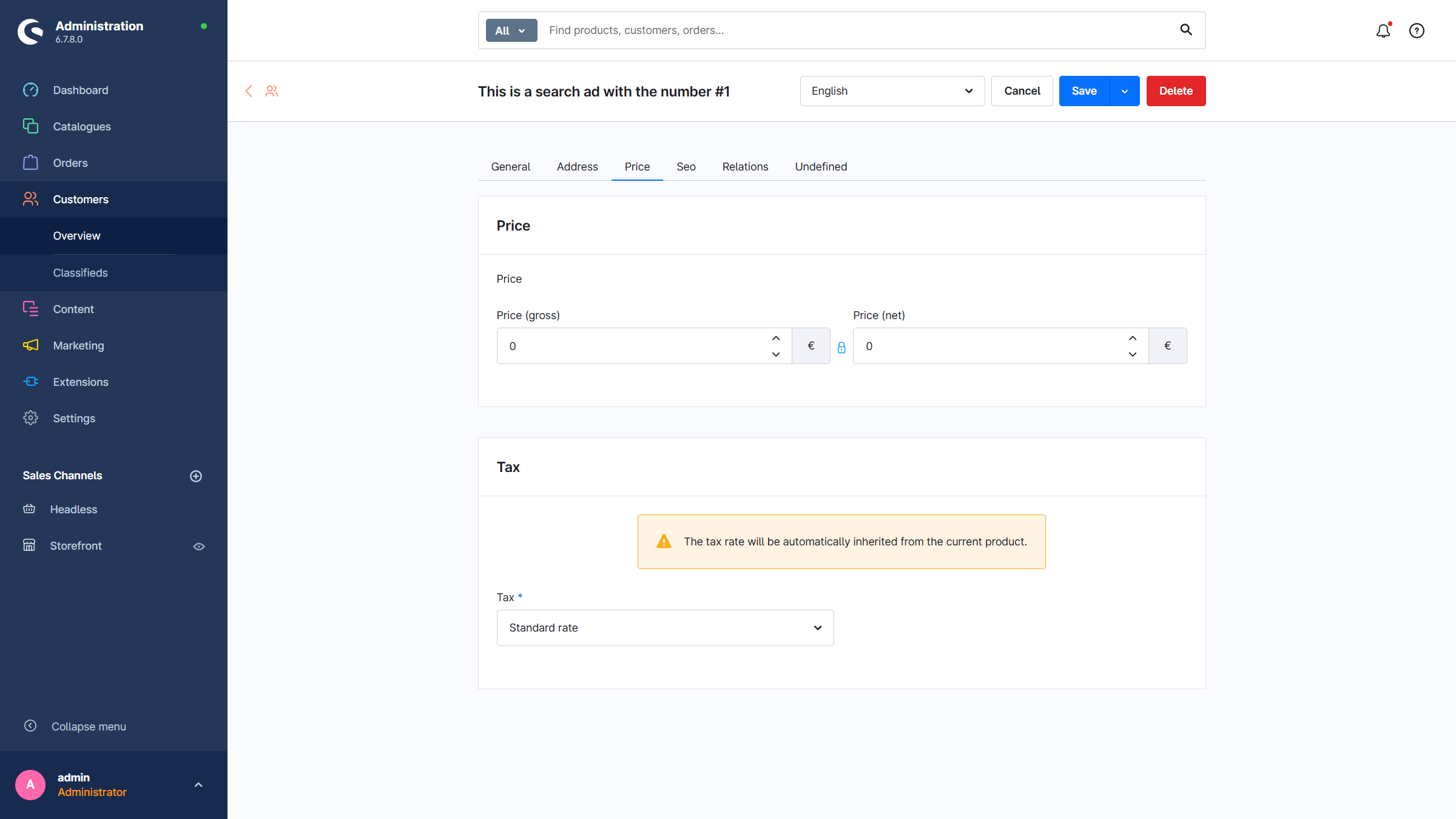
Price
- Price:
0meansfree
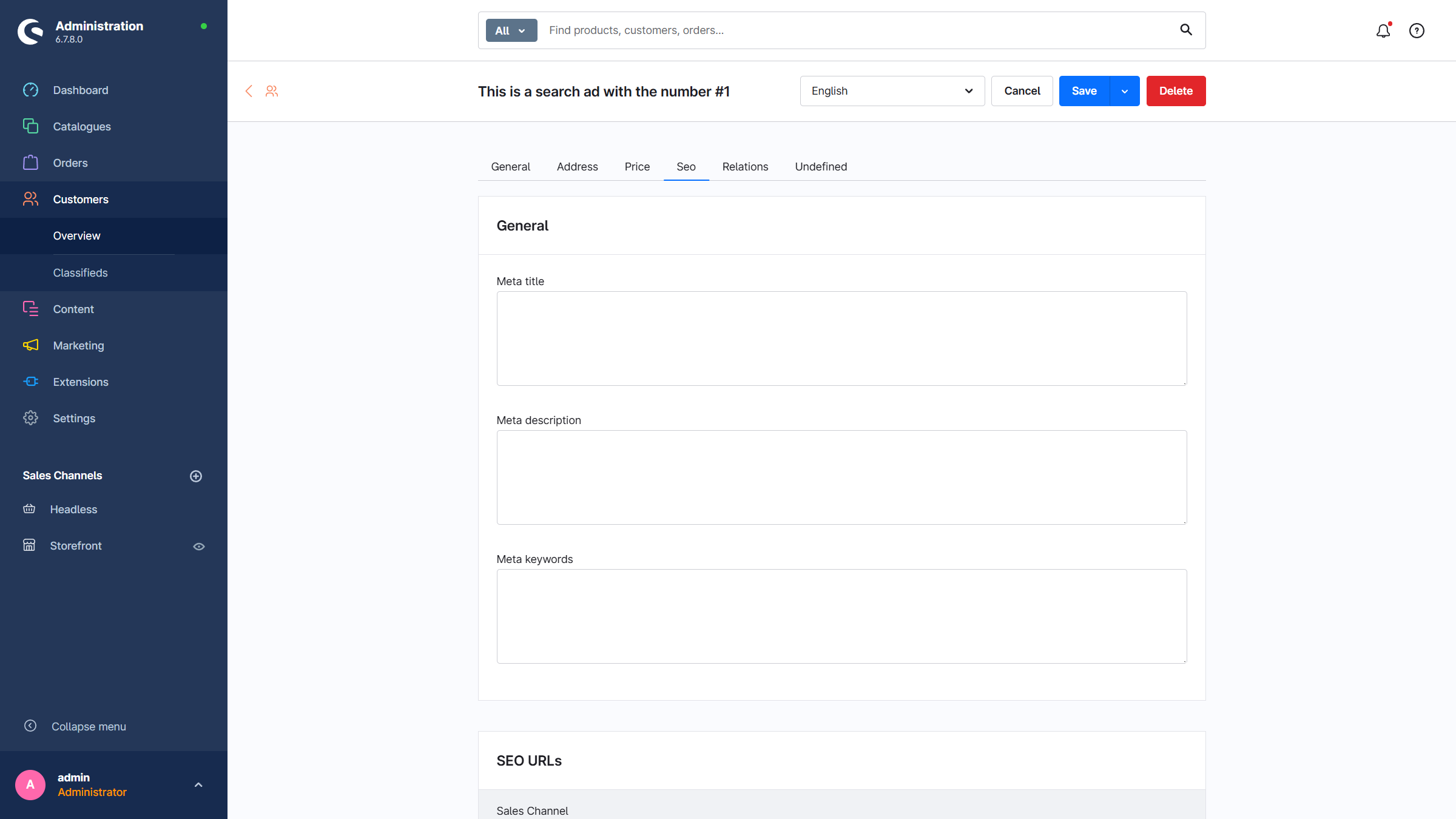
SEO
- Meta information: Title, description, and keywords
- SEO URLs: SEO URLs for the classified ad